Installing a Let's Encrypt TLS certificate on a Brother printer automatically with Certbot (& Cloudflare)
Archived post · originally published · may be out of date
Article inspiration:
- https://blog.poggs.com/2020/03/18/printer-security-installing-tls-certificates-on-hp-printers-automatically/
- https://github.com/gregtwallace/brother-cert/releases
Introduction
I am pretty proud of this blog post as I managed to figure out an automatic method to deploy a Let's Encrypt certificate to my personal Brother printer using a simple Bash script combined with Cloudflare DNS integration. Now you may ask why bother? Well I always wanted to deploy a proper certificate to my own personal printer but not maintain a local only certificate authority. Not only that, I also wanted a system in place that would do this automatically similar to how my Nginx Proxy Manager (NPM) container handles certificates for the various Docker web apps that I deploy.
Even though my specific situation is unique to myself, you can definitely use this blog post as a starting point for your own needs. I heavily rely on Tailscale with Cloudflare for my homelab as I take the various Tailscale IPs of my devices, give them a public DNS A record, and then configure NPM to route the DNS requests to their specific application hosted on them. This allows me to use a proper domain name (instead of the typical internal name) that is routable/pingable externally but can only be accessed by my Tailscale network. For example my Zabbix instance, https://monitor.owltec.ca, has a public DNS A record but this instance is only accessible via my Tailnet.
Unfortunately, I cannot install Tailscale on my Brother printer so it is unable to receive a Tailscale IP. However, NextDNS gives me the ability to do local DNS rewrites so now printer.owltec.ca will redirect to a local IPv4 address. While not a Tailscale IP, it works well, as similar to my Tailnet, you have to be using my NextDNS for the DNS redirect to work. I suppose I could give printer.owltec.ca a public DNS A record with a local IPv4 address (as Cloudflare will allow me) but that is a bit messy as I want to prevent DNS rebinding.
For accessing the printer there are two main ways I would access it which includes via the web management portal and from my client devices. Accessing console with HTTPS, I could use NPM off my Docker host to redirect my requests to the printer but then I am adding additional complexity for no real gain as NPM is still connecting to my printer via HTTP (so there is no end-to-end encryption) and I wanted my printer to be independent of any reverse proxy (in case the reverse proxy host is down). Also putting a reverse proxy in front of the printer does not fix the issue of the client device connecting printer with an unencrypted protocol (such as IPP) as I want to use IPP with the HTTPS setting.
Now with my thought process out of the way, let me explain what I did.
My setup:
- DNS records managed by Cloudflare
- Personal DNS managed by NextDNS
- My homelab machine (a Mac Mini) that will be running my bash scripts via
Cronicle - My Brother DCP-L2550DW printer
Prerequisites
- A Brother printer (duh)
- A virtual machine or device that will be used to run Bash scripts via
Croniclethat will:- Request a certificate with
Certbotvia Cloudflare- FYI - Brother printers require a
RAS-2048certificate which means we need to specify that option when we request a certificate (as the printer cannot use a more modern certificate format)
- FYI - Brother printers require a
- Deploy the new certificate to your Brother printer using the
Brother Certtool- Download the latest version of
Brother Certand extract the files for later use - This application is what will install our newly created certificate on our Brother printer by converting our PEM certificate to the PKCS#12 format that is required for Brother printers
- Download the latest version of
- Request a certificate with
While I am using Cronicle, you are free to use any other solution to run scripts automatically or you can simply run the script manually.
Mac Setup
To install the prerequisites on our Mac we need to install Homebrew:
/bin/bash -c "$(curl -fsSL https://raw.githubusercontent.com/Homebrew/install/HEAD/install.sh)"
Once Homebrew has been installed we will then install:
Certbot:brew install certbot
Cronicle:- First we need to install
nodejs->brew install node - Then we will become root (
sudo -i) and then installCronicle->curl -s https://raw.githubusercontent.com/jhuckaby/Cronicle/master/bin/install.js | node - Configure
Croniclebased on your own values by editing the/opt/cronicle/conf/config.jsonfile -> setup values located here - After
Croniclehas been installed and configured, run the post install script ->/opt/cronicle/bin/control.sh setup - Finally, start
Cronicle->/opt/cronicle/bin/control.sh start- Now to access your
Cronicleinstance connect to following address in your web browser -> http://YOUR_SERVER_HOSTNAME:3012/ with the following default credentials (adminandadmin)
- Now to access your
- If you wish to further customize
Cronicle(including the SMTP settings and what not), please check out their guide
- First we need to install
Cloudflare
For the script to automatically create a certificate, Certbot will request a certificate from Let's Encrypt and will use Cloudflare to verify domain ownership. In my case, Cloudflare is my DNS provider but I am sure you could modify my script by adapting it to work with your provider.
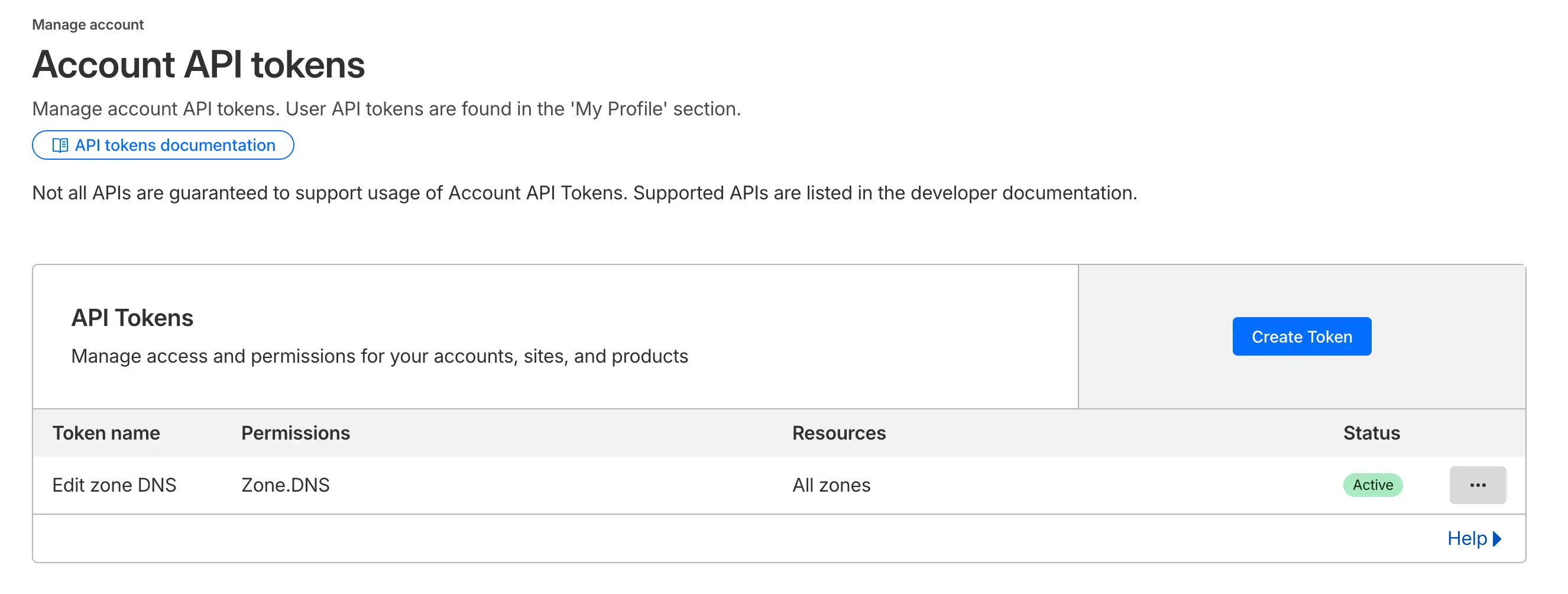
In any case, we need to generate an API that will be used for the script. Please check out the following guide to generate an API key.
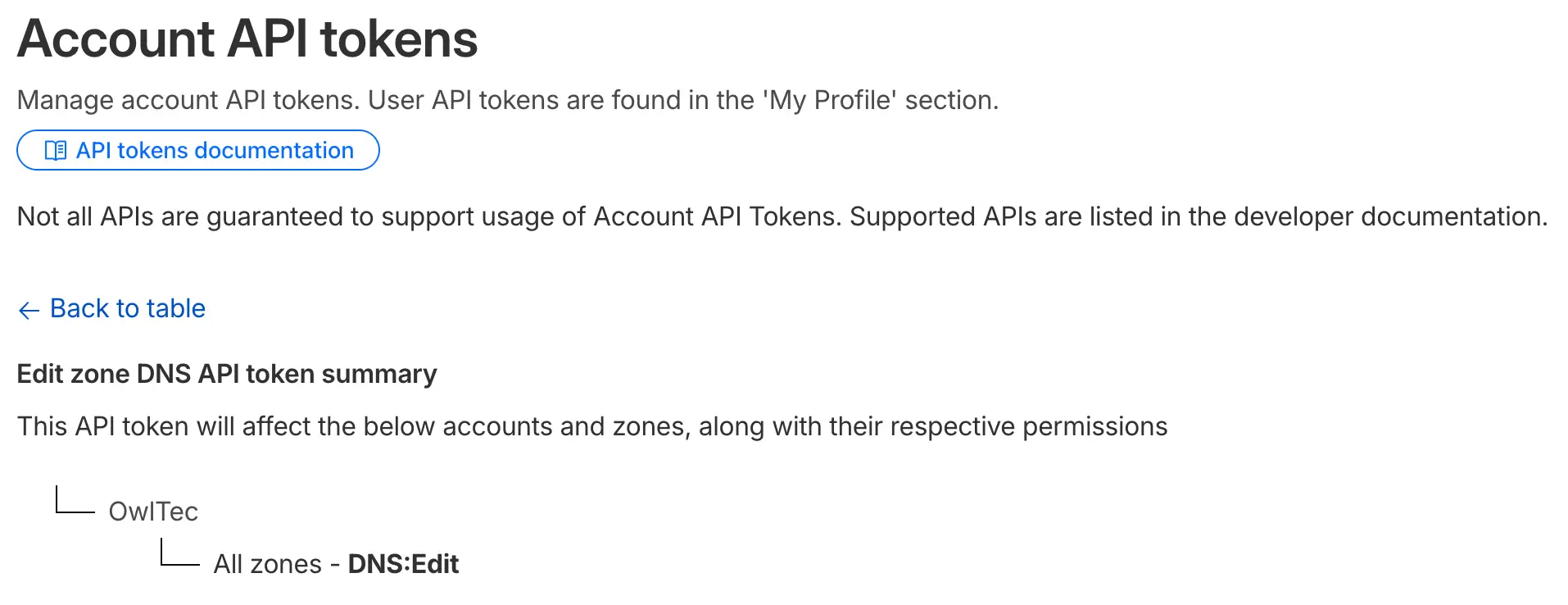
Make sure to create an API key with limited permissions as that is all that this script requires (DNS:Edit only):
Brother Cert
The final piece of this puzzle is the Brother Cert tool created by Greg Wallace (check out his other work as I have featured it on my site). Download the latest version based on your operating system (in my case I downloaded the latest Mac version), extract the files, and store it somewhere that can referenced later on. This application is what will install our newly created certificate on our Brother printer by converting our PEM certificate to the PKCS#12 format that is required for Brother printers and will restart our printer when the certificate has been installed.
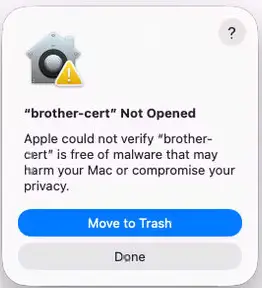
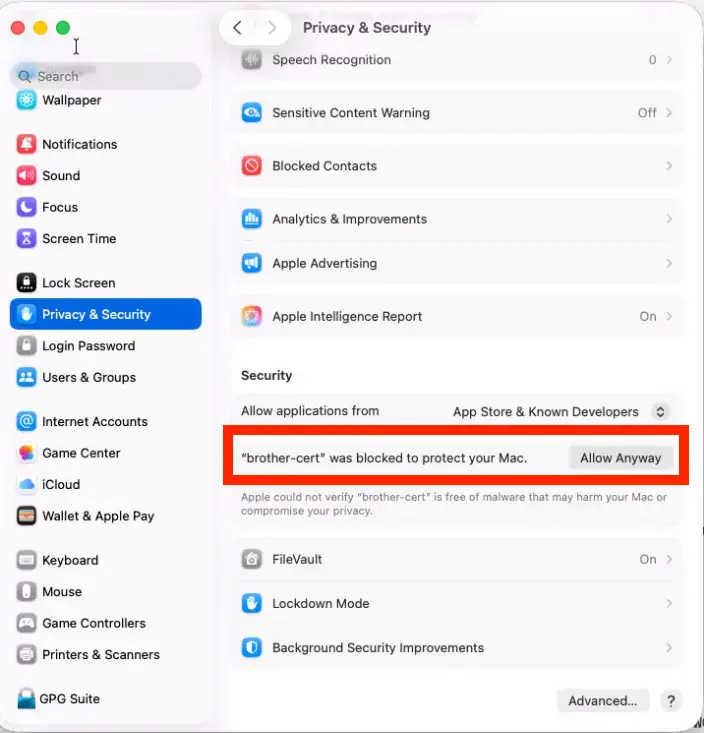
However, because Brother Cert is an unsigned application you will have to manually run it once and then allow it to run on your Mac by going into Privacy & Security under System Settings then selecting Allow anyway for the application. Afterwards, the application will run just fine in the script.
The Script
The printer-cert-master.sh script performs the following two main tasks:
- Obtains a valid SSL certificate from Let's Encrypt via
Certbotand Cloudflare - Deploys the certificate to the Brother printer
First, the script uses certbot with the Cloudflare DNS plugin to obtain a Let's Encrypt certificate by programmatically creating a DNS TXT record to prove domain ownership, specifically requesting RSA-2048 keys (required by Brother printers) instead of more modern ECDSA keys. Once the certificate is acquired, the script copies the certificate files to a shared storage location and immediately deploys them to the printer using the brother-cert tool, which connects to your printer via HTTPS (falling back to HTTP if the printer has an expired certificate), converts the PEM certificates to PKCS#12 format, uploads the new certificate to the printer, and triggers an automatic printer reboot to activate the new certificate.
Besides the script, there are two additional files cloudflare.ini and printer.ini which are credential files used with Cloudflare and my Brother printer respectively. My decision to split the credentials is to allow for the use of the cloudflare.ini file to be shared across all certbot scripts while keeping the device-specific passwords isolated for better security and easier credential rotation.
Cloudflare.ini
# Cloudflare API credentials for certbot
# DO NOT SHARE THIS FILE - Contains sensitive credentials

dns_cloudflare_api_token = YOUR CLOUDFLARE API TOKEN
printer.ini
# Brother Printer Credentials
# DO NOT SHARE THIS FILE - Contains sensitive credentials

printer_name = YOUR PRINTER DNS NAME
printer_password = YOUR ADMIN PASSWORD FOR YOUR PRINTER
printer-cert-master.sh:
Below is the script I am using, please take note of the following variables that will need to be modified for your own personal usage:
DOMAIN="DNS NAME FOR PRINTER"- This is the URL that is used to access your printer (and what the certificate will use) -> in my case it is
https://ot-prt01.owltec.ca
- This is the URL that is used to access your printer (and what the certificate will use) -> in my case it is
EMAIL="ADMIN EMAIL"- This is the email used for certificate verification
CERT_DESTINATION="CERT LOCATION"- Where you want to save your newly generated certificate
CLOUDFLARE_CREDENTIALS="cloudflare.ini LOCATION"- Location of your
Cloudflare.inifile
- Location of your
PRINTER_CREDENTIALS="printer.ini LOCATION"- Location of your
printer.inifile
- Location of your
- `BROTHER_CERT_TOOL="brother cert PROGRAM LOCATION"
- Location of the
Brother Certtool you had previously downloaded
- Location of the
VENV_PATH="VENV LOCATION"- Where you would like to store your virtual environment for this script
#!/bin/bash

# Master Certificate Management Script for Brother Printer (OT-PRT01.owltec.ca)
# Combines certificate acquisition (certbot) and deployment (brother-cert)
# This script automates the entire certificate lifecycle

echo "=============================================="
echo "  Brother Printer Certificate Management"
echo "  YOUR PRINTER NAME (YOUR PRINTER IP)
echo "=============================================="
echo ""

# Configuration
DOMAIN="DNS NAME FOR PRINTER"
EMAIL="ADMIN EMAIL"
CERT_DESTINATION="CERT LOCATION"
CLOUDFLARE_CREDENTIALS="cloudflare.ini LOCATION"
PRINTER_CREDENTIALS="printer.ini LOCATION"
BROTHER_CERT_TOOL="brother cert PROGRAM LOCATION"
VENV_PATH="VENV LOCATION"

# ============================================
# VENV SETUP
# ============================================

echo "Checking Python virtual environment..."

# Check if venv exists, create if not
if [ ! -d "$VENV_PATH" ]; then
    echo "Virtual environment not found. Creating at $VENV_PATH..."
    python3 -m venv "$VENV_PATH"
    if [ $? -eq 0 ]; then
        echo "✓ Virtual environment created successfully"
    else
        echo "✗ Failed to create virtual environment"
        exit 1
    fi
else
    echo "✓ Virtual environment found"
fi

# Activate the virtual environment
source "$VENV_PATH/bin/activate"

if [ $? -eq 0 ]; then
    echo "✓ Virtual environment activated"
    echo "  Using Python: $(which python3)"
    echo "  Using pip: $(which pip3)"
else
    echo "✗ Failed to activate virtual environment"
    exit 1
fi

# Upgrade pip to latest version to avoid warnings
echo "Upgrading pip..."
pip3 install --upgrade pip --quiet
if [ $? -eq 0 ]; then
    echo "✓ pip upgraded to latest version"
else
    echo "⚠ Failed to upgrade pip, but continuing anyway"
fi

echo ""

# ============================================
# PART 1: CERTIFICATE ACQUISITION (CERTBOT)
# ============================================

echo "STEP 1: Certificate Acquisition"
echo "================================"
echo ""

# Check if cloudflare credentials file exists
if [ ! -f "$CLOUDFLARE_CREDENTIALS" ]; then
    echo "Error: Cloudflare credentials file not found at $CLOUDFLARE_CREDENTIALS"
    echo ""
    echo "Please create the file with the following content:"
    echo ""
    echo "# Cloudflare API token (recommended)"
    echo "dns_cloudflare_api_token = YOUR_API_TOKEN_HERE"
    echo ""
    echo "Then run: chmod 600 $CLOUDFLARE_CREDENTIALS"
    exit 1
fi

# Check if certbot-dns-cloudflare is installed in venv
if ! command -v certbot &> /dev/null || ! python3 -c "import certbot_dns_cloudflare" 2>/dev/null; then
    echo "certbot-dns-cloudflare plugin not found in venv. Installing..."
    pip3 install certbot certbot-dns-cloudflare
    if [ $? -eq 0 ]; then
        echo "✓ certbot and certbot-dns-cloudflare installed successfully"
    else
        echo "✗ Failed to install required packages"
        exit 1
    fi
else
    echo "✓ certbot-dns-cloudflare plugin found"
fi

# Create destination directory if it doesn't exist
mkdir -p "$CERT_DESTINATION"

echo "Requesting SSL certificate for $DOMAIN using Cloudflare DNS..."
echo "Using RSA key for Brother printer compatibility..."
echo ""

# Request certificate using Cloudflare DNS verification
certbot certonly \
  --dns-cloudflare \
  --dns-cloudflare-credentials "$CLOUDFLARE_CREDENTIALS" \
  --dns-cloudflare-propagation-seconds 30 \
  --email "$EMAIL" \
  --agree-tos \
  --no-eff-email \
  --domain "$DOMAIN" \
  --key-type rsa \
  --keep-until-expiring \
  --non-interactive

CERTBOT_EXIT=$?

# Check if successful
if [ $CERTBOT_EXIT -eq 0 ]; then
    echo ""
    echo "✓ Certificate check completed successfully!"
    echo ""
    echo "Copying certificates to $CERT_DESTINATION..."

    # Copy certificates to destination
    cp /etc/letsencrypt/live/$DOMAIN/fullchain.pem "$CERT_DESTINATION/fullchain.pem"
    cp /etc/letsencrypt/live/$DOMAIN/privkey.pem "$CERT_DESTINATION/privkey.pem"
    cp /etc/letsencrypt/live/$DOMAIN/cert.pem "$CERT_DESTINATION/cert.pem"
    cp /etc/letsencrypt/live/$DOMAIN/chain.pem "$CERT_DESTINATION/chain.pem"

    # Set appropriate permissions
    chmod 644 "$CERT_DESTINATION/fullchain.pem"
    chmod 644 "$CERT_DESTINATION/cert.pem"
    chmod 644 "$CERT_DESTINATION/chain.pem"
    chmod 600 "$CERT_DESTINATION/privkey.pem"

    echo ""
    echo "Certificate files copied to:"
    echo "  Full Chain: $CERT_DESTINATION/fullchain.pem"
    echo "  Private Key: $CERT_DESTINATION/privkey.pem"
    echo "  Certificate: $CERT_DESTINATION/cert.pem"
    echo "  Chain: $CERT_DESTINATION/chain.pem"
    echo ""
else
    echo ""
    echo "✗ Certificate request failed with exit code: $CERTBOT_EXIT"
    echo "Skipping deployment step."
    exit 1
fi

# ============================================
# PART 2: CERTIFICATE DEPLOYMENT (BROTHER-CERT)
# ============================================

echo ""
echo "STEP 2: Certificate Deployment"
echo "==============================="
echo ""

# Certificate files for deployment
PRIVATE_KEY="$CERT_DESTINATION/privkey.pem"
CERTIFICATE="$CERT_DESTINATION/fullchain.pem"

# Check if printer credentials file exists
if [ ! -f "$PRINTER_CREDENTIALS" ]; then
    echo "Error: Printer credentials file not found at $PRINTER_CREDENTIALS"
    echo ""
    echo "Please create the file with the following content:"
    echo ""
    echo "# Brother Printer Credentials"
    echo "printer_name = YOUR_PRINTER_HOSTNAME"
    echo "printer_password = YOUR_PRINTER_PASSWORD"
    echo ""
    echo "Then run: chmod 600 $PRINTER_CREDENTIALS"
    exit 1
fi

# Read credentials from file
PRINTER_HOST=$(grep "^printer_name" "$PRINTER_CREDENTIALS" | cut -d'=' -f2 | tr -d ' ')
PRINTER_PASSWORD=$(grep "^printer_password" "$PRINTER_CREDENTIALS" | cut -d'=' -f2 | tr -d ' ')

# Validate credentials were loaded
if [ -z "$PRINTER_HOST" ] || [ -z "$PRINTER_PASSWORD" ]; then
    echo "Error: Could not read printer_name or printer_password from $PRINTER_CREDENTIALS"
    exit 1
fi

# Check if brother-cert tool exists
if [ ! -f "$BROTHER_CERT_TOOL" ]; then
    echo "Error: brother-cert tool not found at $BROTHER_CERT_TOOL"
    exit 1
fi

# Check if certificate files exist
if [ ! -f "$PRIVATE_KEY" ]; then
    echo "Error: Private key not found at $PRIVATE_KEY"
    exit 1
fi

if [ ! -f "$CERTIFICATE" ]; then
    echo "Error: Certificate not found at $CERTIFICATE"
    exit 1
fi

echo "Deploying certificate to printer at $PRINTER_HOST..."
echo ""

# Attempt 1: Try HTTPS first (for printers with valid certificates)
echo "Attempting HTTPS connection..."
"$BROTHER_CERT_TOOL" \
  --hostname "$PRINTER_HOST" \
  --password "$PRINTER_PASSWORD" \
  --keyfile "$PRIVATE_KEY" \
  --certfile "$CERTIFICATE" 2>&1

DEPLOY_EXIT=$?

# If HTTPS failed, try HTTP fallback
if [ $DEPLOY_EXIT -ne 0 ]; then
    echo ""
    echo "⚠ HTTPS connection failed (likely due to invalid/expired certificate on printer)"
    echo "Retrying with HTTP fallback..."
    echo ""

    "$BROTHER_CERT_TOOL" \
      --hostname "$PRINTER_HOST" \
      --password "$PRINTER_PASSWORD" \
      --keyfile "$PRIVATE_KEY" \
      --certfile "$CERTIFICATE" \
      --http

    DEPLOY_EXIT=$?
fi

echo ""
if [ $DEPLOY_EXIT -eq 0 ]; then
    echo "✓ Certificate deployed successfully!"
    echo ""
    echo "The printer will restart to activate the new certificate."
    echo "Please wait a few moments before accessing the printer web interface."
    echo ""
    echo "You can verify the certificate by visiting:"
    echo "  https://$PRINTER_HOST"
    echo "  https://$DOMAIN"
    echo ""
    echo "=============================================="
    echo "  Certificate Management Complete!"
    echo "=============================================="
    echo ""
else
    echo "✗ Certificate deployment failed with exit code: $DEPLOY_EXIT"
    echo "Please check the error messages above."
    exit 1
fi
Cronicle Setup
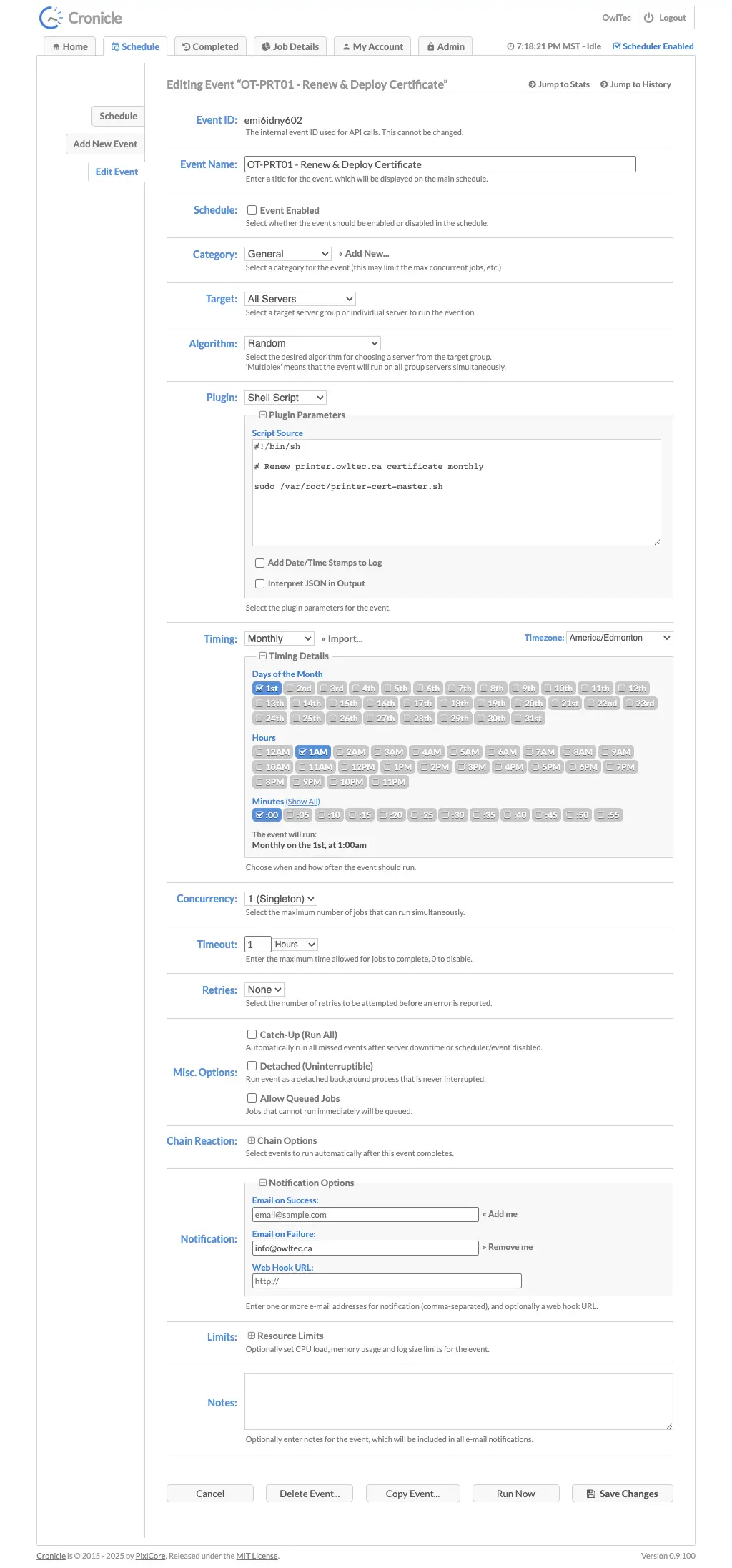
Here is a screenshot of my Cronicle setup for deploying this script so it automatically installs a new Brother certificate every month. As previously mentioned, you can also just manually run the script as well
To reference the script in Cronicle, select Shell Script under Plugin:
#!/bin/sh

# Renew printer.owltec.ca certificate monthly

sudo /PATH/TO/SCRIPT/printer-cert-master.sh
Conclusion
If you followed my guide successfully, you should now have a Brother printer with a fancy SSL certificate with a proper domain name!
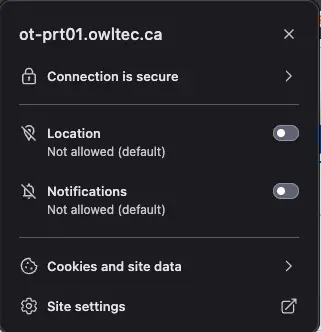
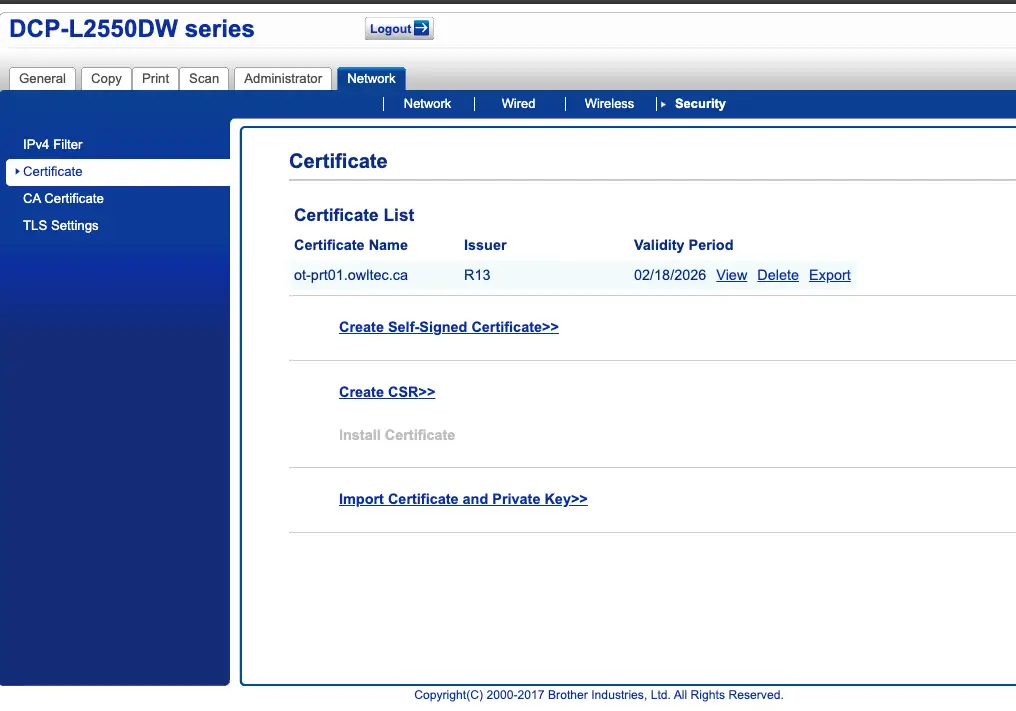
You can confirm if the script worked successfully by signing into the admin portal by navigating to Security and then selecting certificate: