Deploying An Internal HTTPS Certificate for a UPS APC with ADCS (Active Directory Certificate Services) with APC P15 Tool
Archived post · originally published · may be out of date
- Edit (2026/01/14): scroll down to the "Update: Automated Script" section for a script I created that automates this entire process (excluding firmware)
Introduction
Recently I had the opportunity to deploy a new Active Directory Certificate Service (ADCS) server in my environment with a new root certificate which allowed me to finally deploy internal certificates for HTTPS usage. Unfortunately, for the handful of APC UPSes I have, I found that deploying an internal ADCS certificate to their web management pages within their Network Management Cards (NMCs) was a convoluted process until I managed to figure it out with the help of a wonderful tool called APC P15 Tool. Previously, you had to use a suite of tools from APC in order to deploy certificates to your NMCs but APC P15 Tool now makes it an effortless experience.
My environment:
- ADCS Server running on Windows Server 2022
- APC Smart-UPS X 3000 devices (SKU SMX3000LVNC)
- UPS Network Management Cards 2 -> model AP9631
Prerequisites
Understanding Certificate Limitations
Due to limitations with various APC NMCs, the root certificate utilized by your ADCS server must be using SHA256 or less for the hash algorithm; if your issuing certificate has a hash algorithm greater than SHA256 (such as SHA512) then it will not work and your Network Management Card will reject it (even if it correctly "installs")
For a more detailed discussion on this limitation, please see the following discussion on the APC UPS Data Center & Enterprise Solutions Forum (specifically MrPunch's 2023-02-02 01:00 PM post).
Update the Firmware on the NMCs
If you are like me (and 99% of System Administrators), the firmware on your NMCs has not been updated in a while. Prior to installing your new HTTPS certificate(s), it is strongly advised that you update the firmware on your NMCs as it makes for a better, error-free experience.
Note Updating the firmware on your NMC(s) will NOT restart your APC UPS unit itself but only the management card
If you do not update the firmware on your NMCs, then you might receive the following error message later on when attempting to install your certificate with APC P15 Tool:
install: failed to connect to host (ssh: handshake failed: ssh: no common algorithm for client to server cipher; client offered: [aes128-gcm@openssh.com aes256-gcm@openssh.com chacha20-poly1305@openssh.com aes128-ctr aes192-ctr aes256-ctr], server offered: [aes256-cbc 3des-cbc])
Steps to update NMC firmware:
-
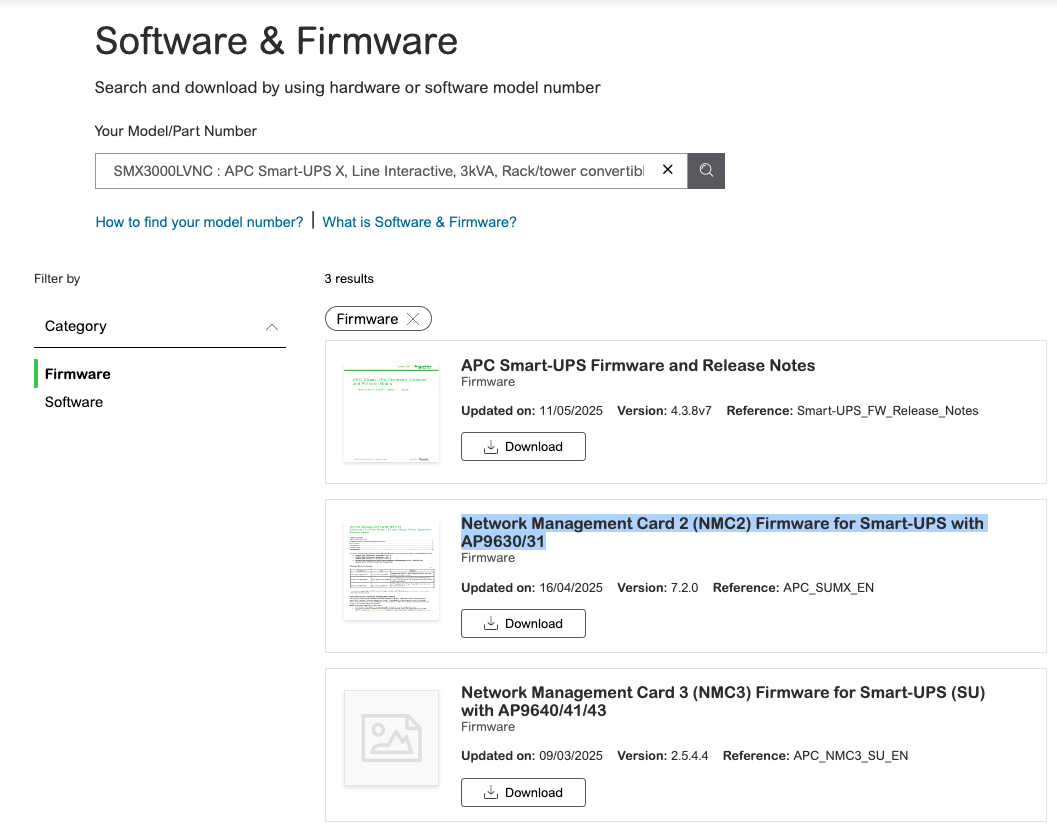
Browse to the APC website and then navigate to the download page associated with your device's model number
-
Under the firmware category, select the correct firmware for your model of NMC (in my case it is for an AP9631) and then download the .exe installer
-
Run the downloaded .exe, the files will then extract to a folder where you launched the .exe (unless you change the location), and then the
NMC Firmware Update Utilitywill automatically launch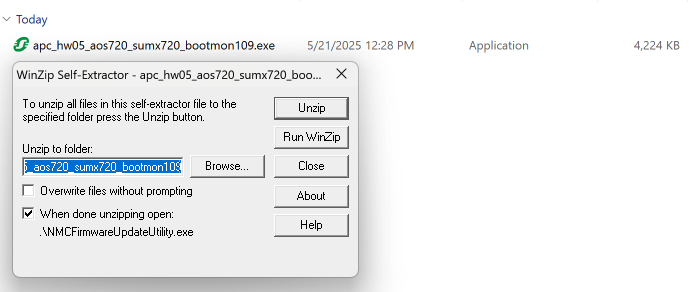
-
From here, enter your device's host name (or IP), select FTP (which worked in my case unlike SCP), provide your credentials, and then select
Start Update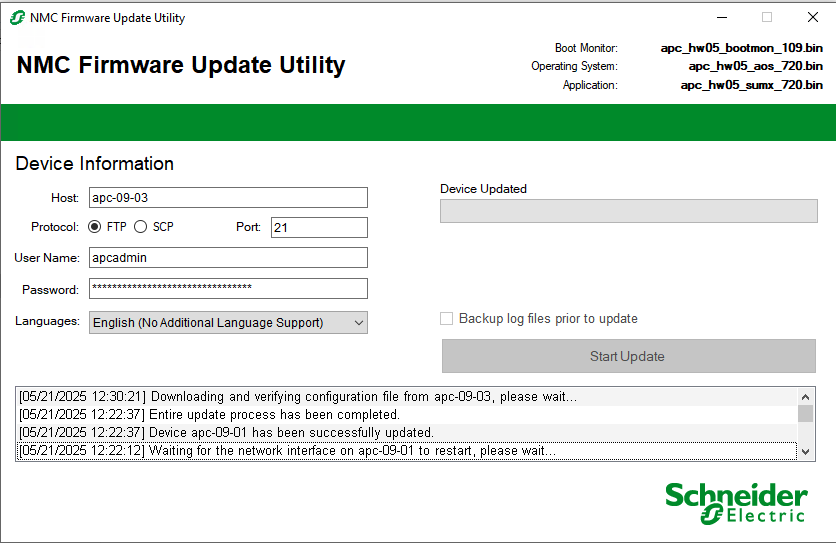
-
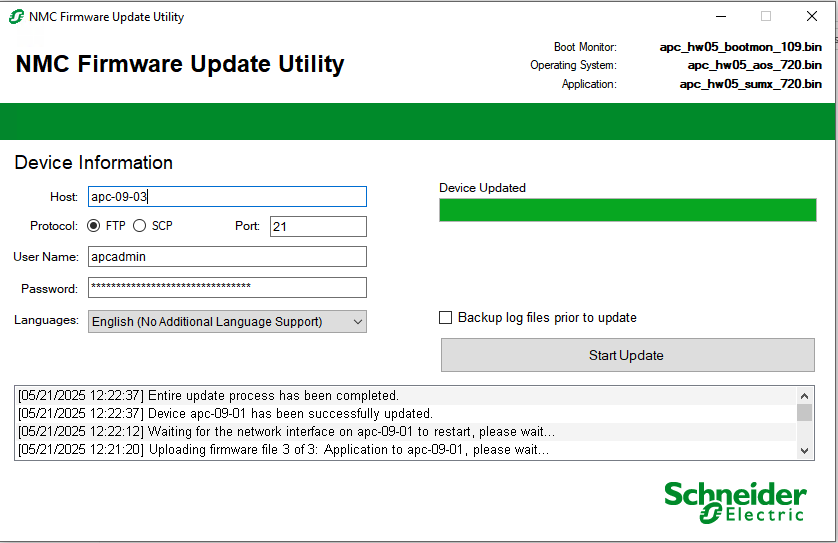
Wait 5 minutes and then the update will finish
Installing an ADCS Certificate
There is a three step process we need to follow to install our own HTTPS certificate issued by our ADCS server onto our NMC(s):
- Generating a CSR
- Having our ADCS server issue a certificate with the previously generated CSR
- Installing the newly created certificate with
apc-p15-tool- We can either use the tool to automatically deploy the certificate for us or install it manually
Generating a CSR
First, we need to generate a certificate signing request for our NMC(s). There are many ways to do this but the easiest way I have found is to use a website such as Certificate Tools then download the .csr file and private key file.
Issue a Certificate
There are many ways to request a certificate from your certificate authority but the easiest way I have found is utilizing certreq
- Utilizing the .csr file and private .key file from the last step, we will use them to request a certificate from our certificate authority with our certificate template of choice:
- If you do not have a custom template designed for HTTPS use, then you can use the default
Web Servertemplate in ADCS once you have configured your ADCS server to utilize it - Run the following command to request a certificate:
certreq -submit -attrib "CertificateTemplate:YOUR-CERT-TEMPLATE" .\YOURCSR.csr .\YOURCERT.cer - Select the correct certificate authority and select ok
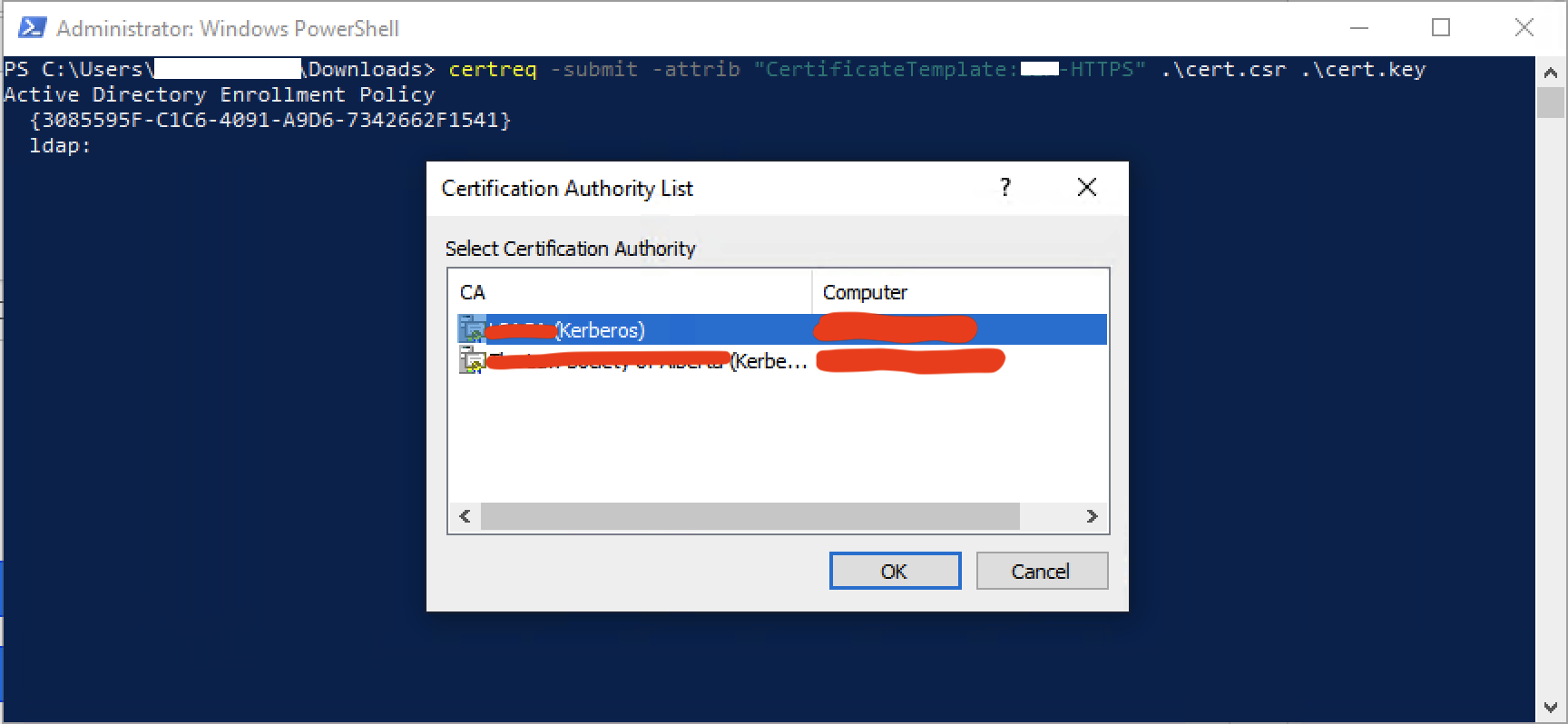
- Pay special attention to the
RequestIDgenerated by this request, as you will need this ID later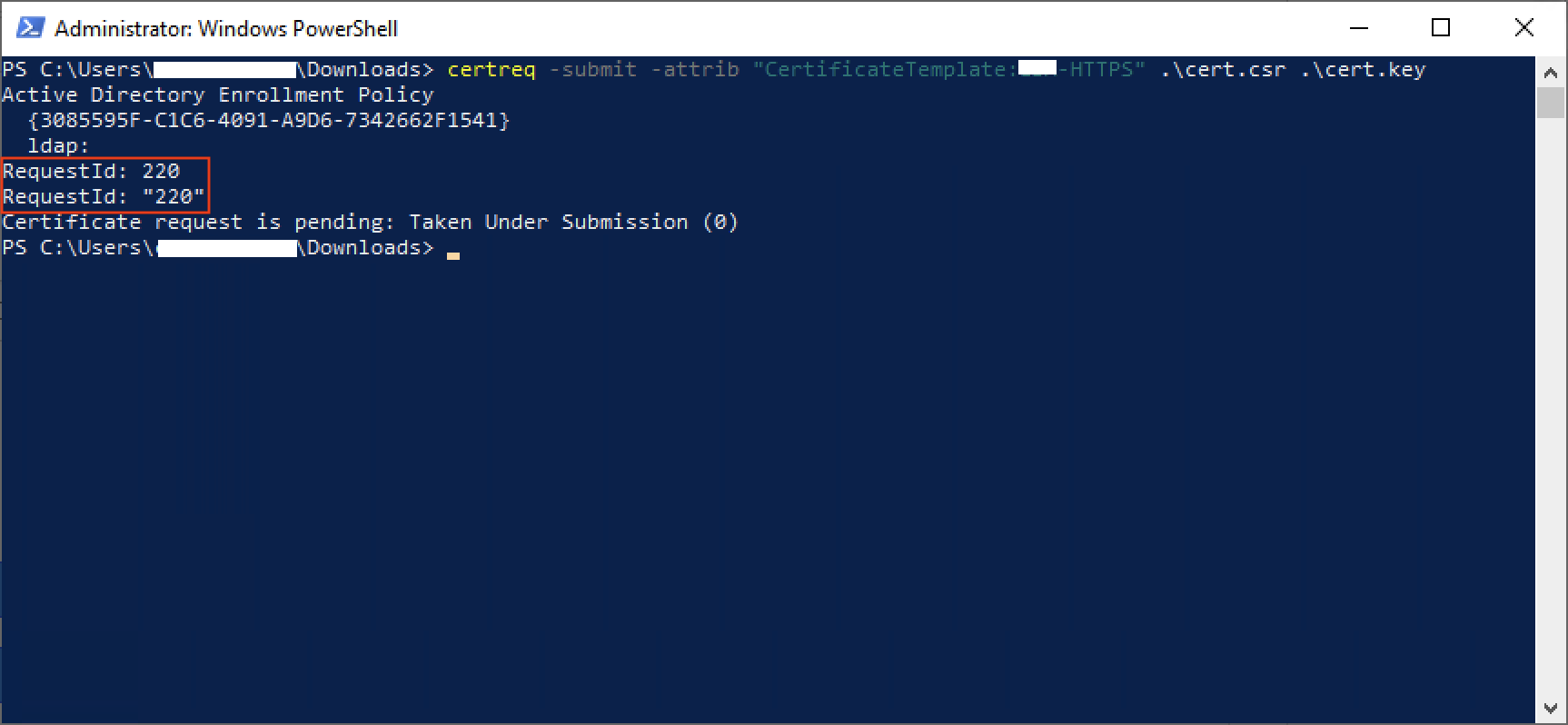
- If you do not have a custom template designed for HTTPS use, then you can use the default
- Approve the certificate request otherwise skip this step if your certificate is automatically approved
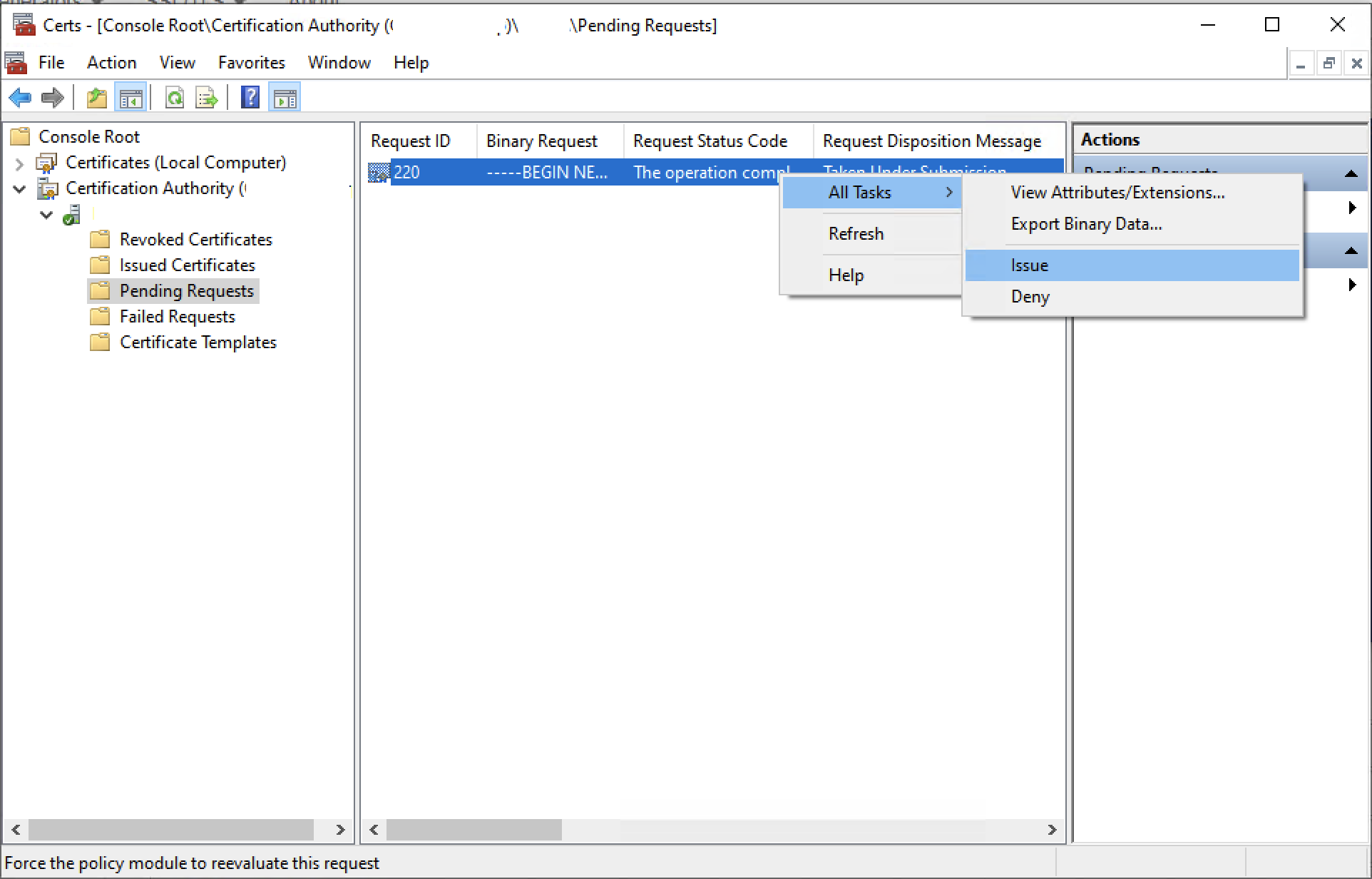
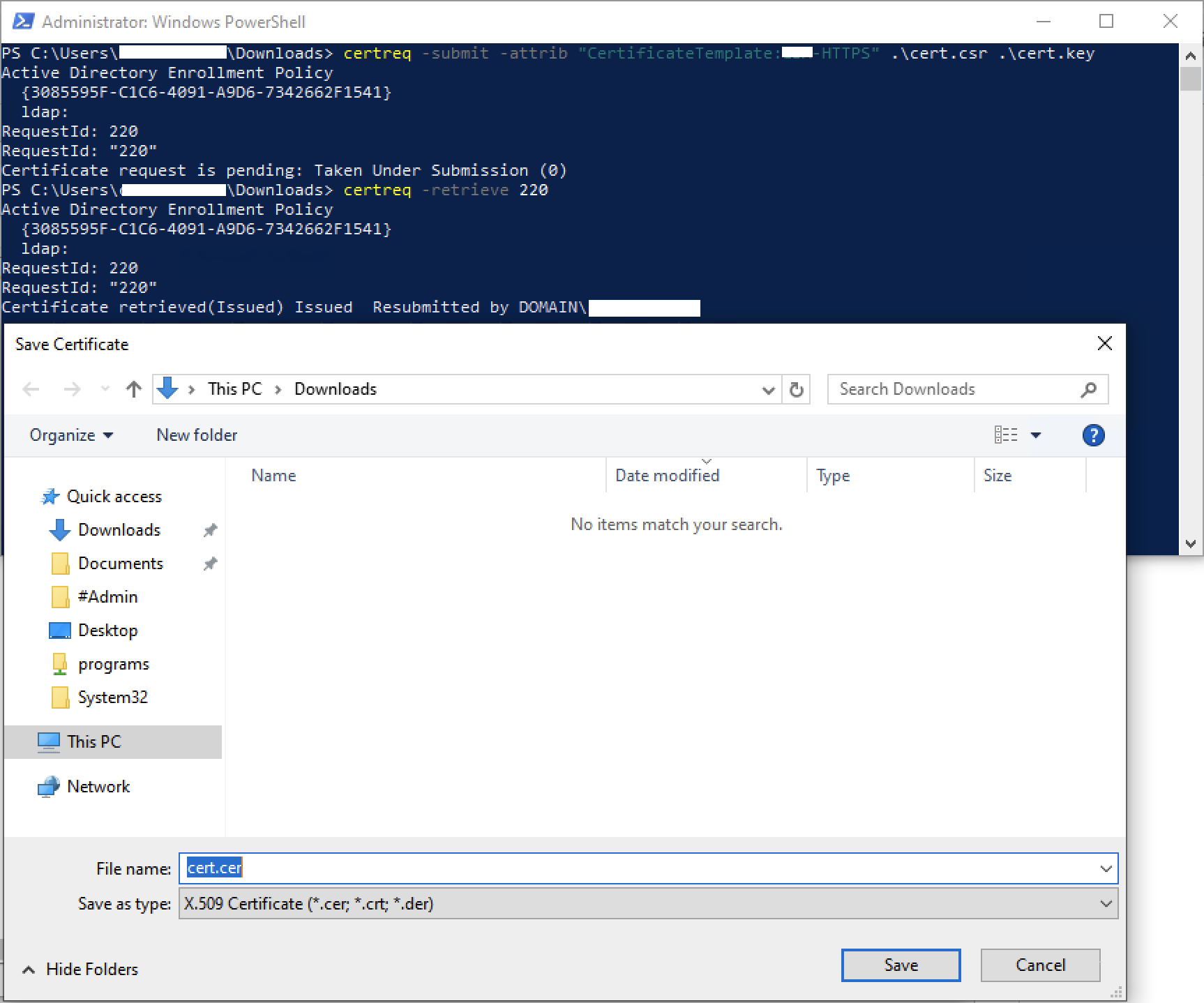
- Download your new certificate
- Run the following command but replace
XXXwith yourRequestIDfrom the previous steps ->certreq -retrieve XXX - Then save the certificate locally, naming it whatever you would like with a
.cerextension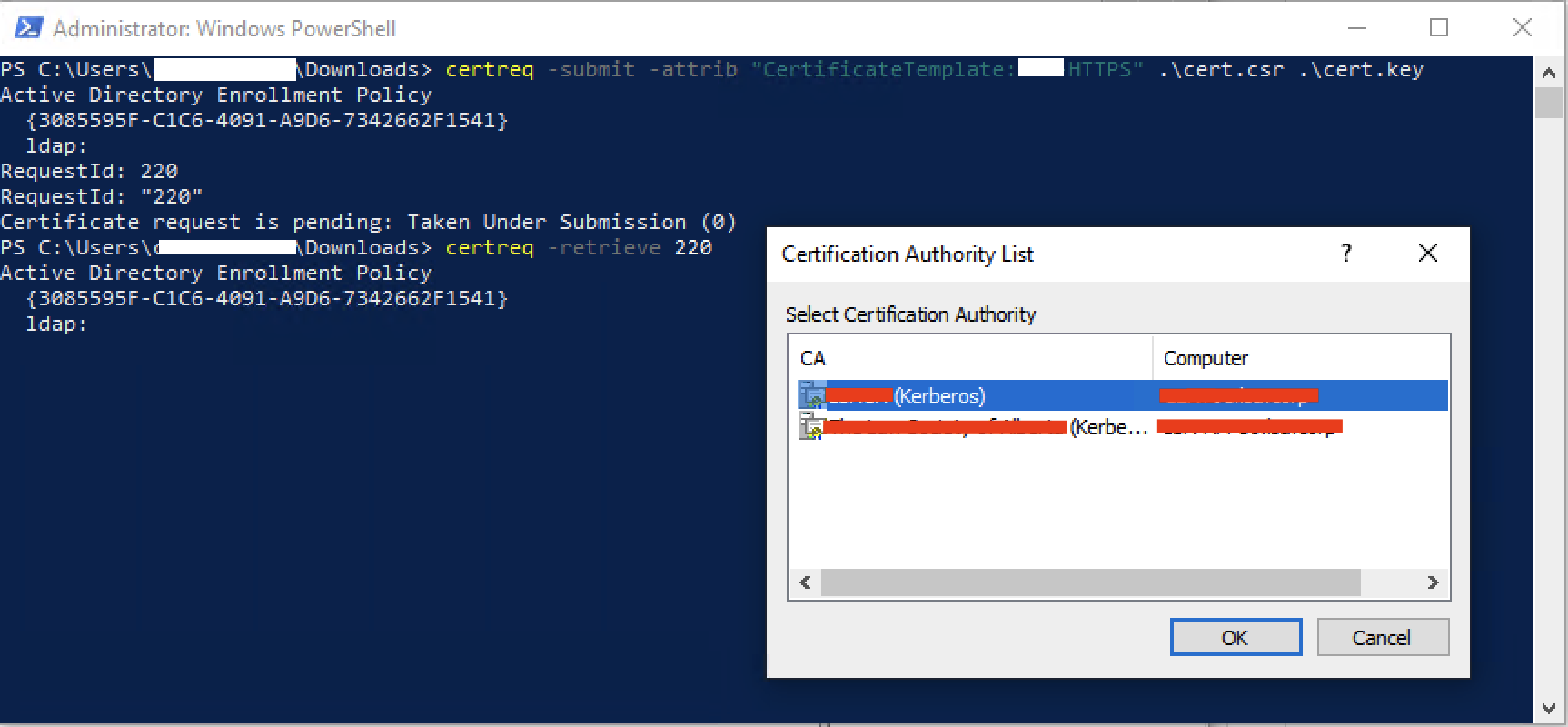
- Run the following command but replace
Installing the Certificate
Finally, we are going to download APC P15 Tool and use it to install our certificate. Essentially what APC P15 Tool does is convert our certificate into a .p15 certificate format that can be used by NMCs.
You can download the latest version of APC P15 Tool here under the releases section.
- Make sure to send the creator some positive feedback and even a donation to say thanks!
We can utilize APC P15 Tool to deploy our certificate in two ways:
- We can install the certificate remotely
- We can manually install the certificate via the web portal
Remotely
-
Download the latest version of
APC P15 Toolfor your operating system and unzip the .zip file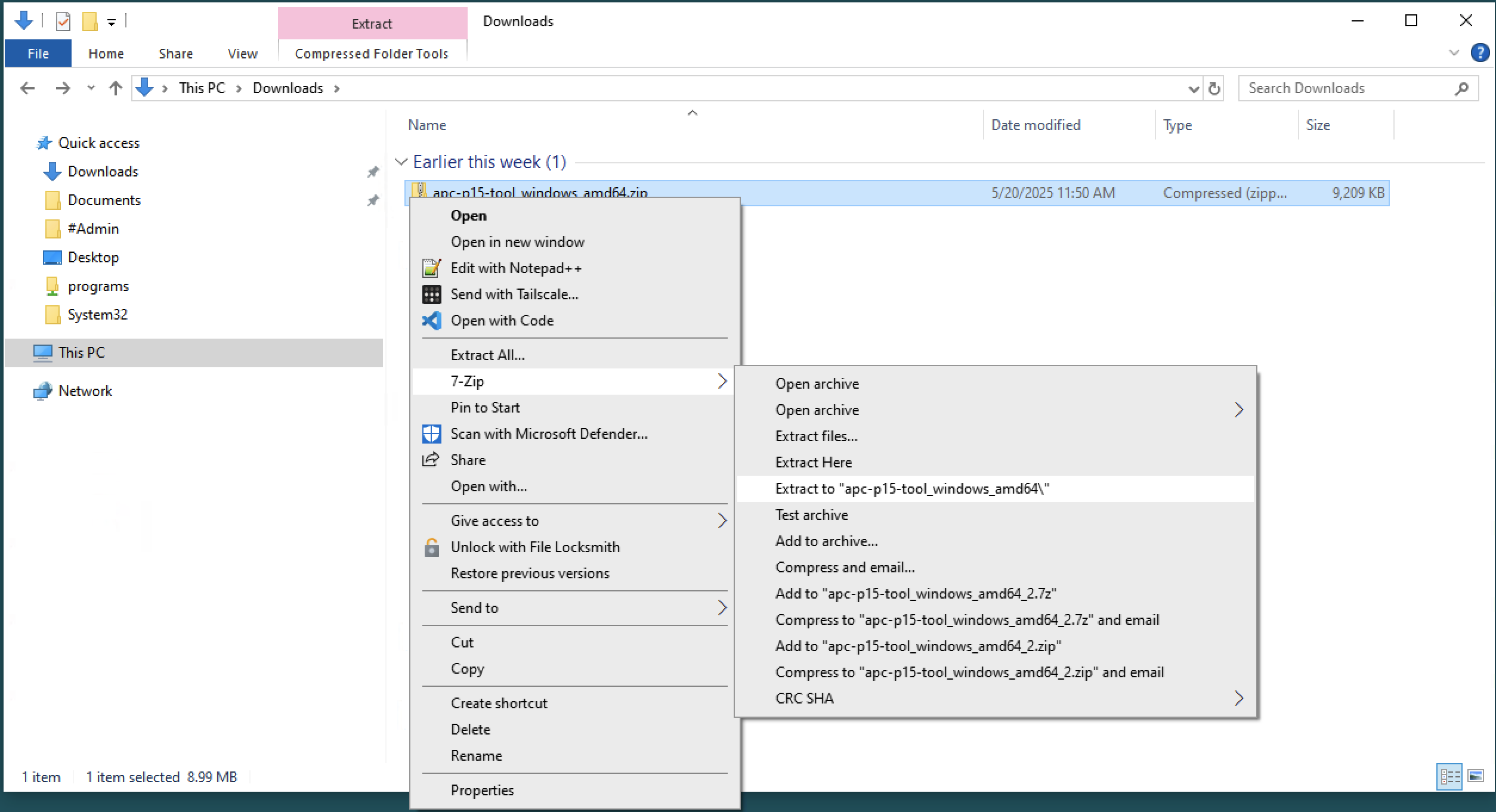
-
Copy over the previously created certificate and key files to the newly extracted folder containing
APC P15 Tooland then launch a console session (in my case PowerShell) from this folder (or navigate to it)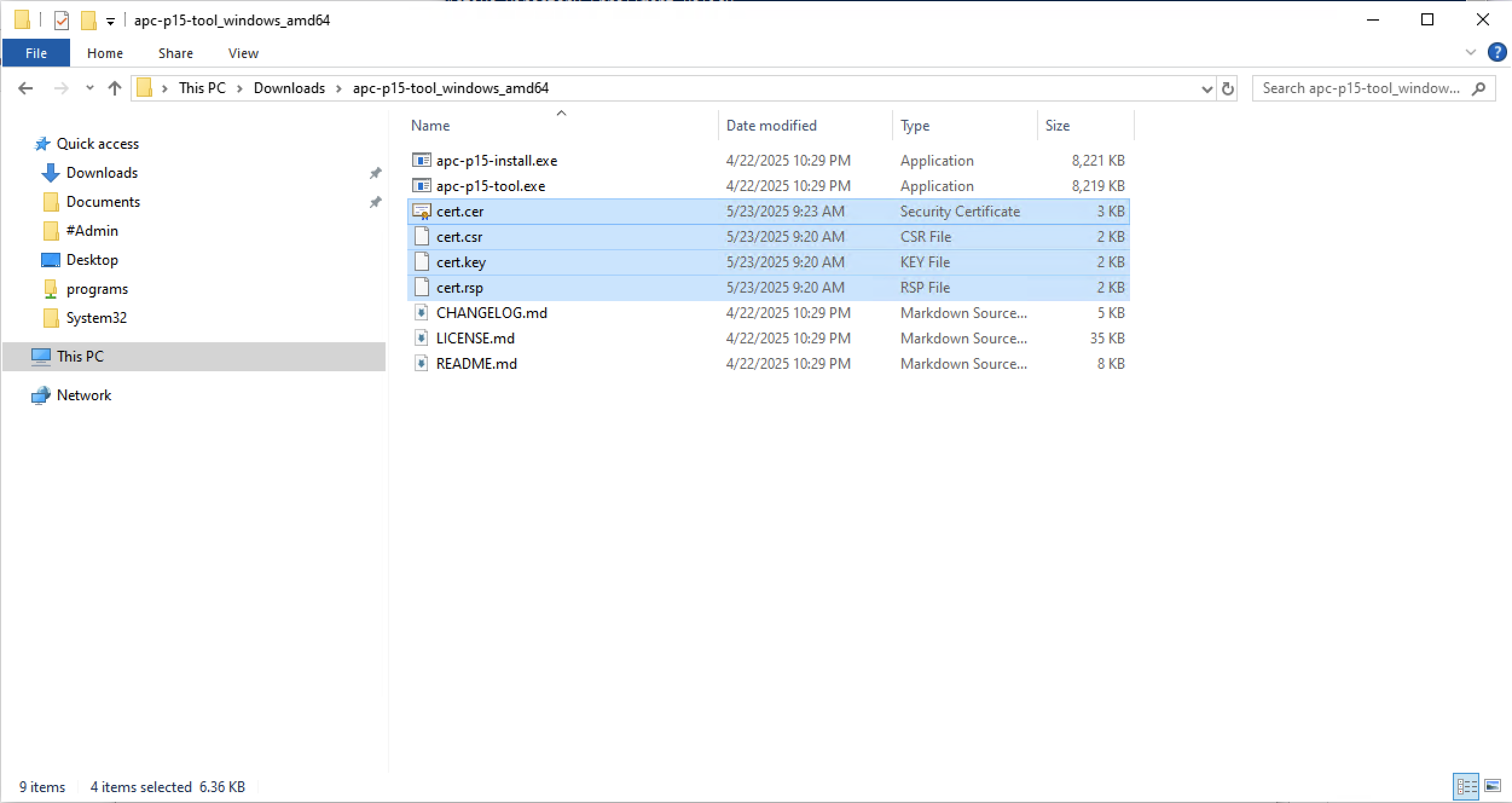
-
We are now going to run the following
APC P15 Toolcommand:
 .\apc-p15-tool.exe install `
	 --keyfile .\YOURKEY.key `
	 --certfile .\YOURCERT.cer `
	 --hostname YOUR-NMC-HOSTNAME `
	 --username YOURUSERNAME --password YOURPASSWORD `
	 --fingerprint NMC-SSH-FINGERPRINT
- If you do not know your SSH fingerprint for your NMC device, you can put in a random value for it (such as
ABC1234) and then attempt to runAPC P15 Toolwhich will fail but then will provide you with the correct SSH fingerprint of your device (which you can then use in your command)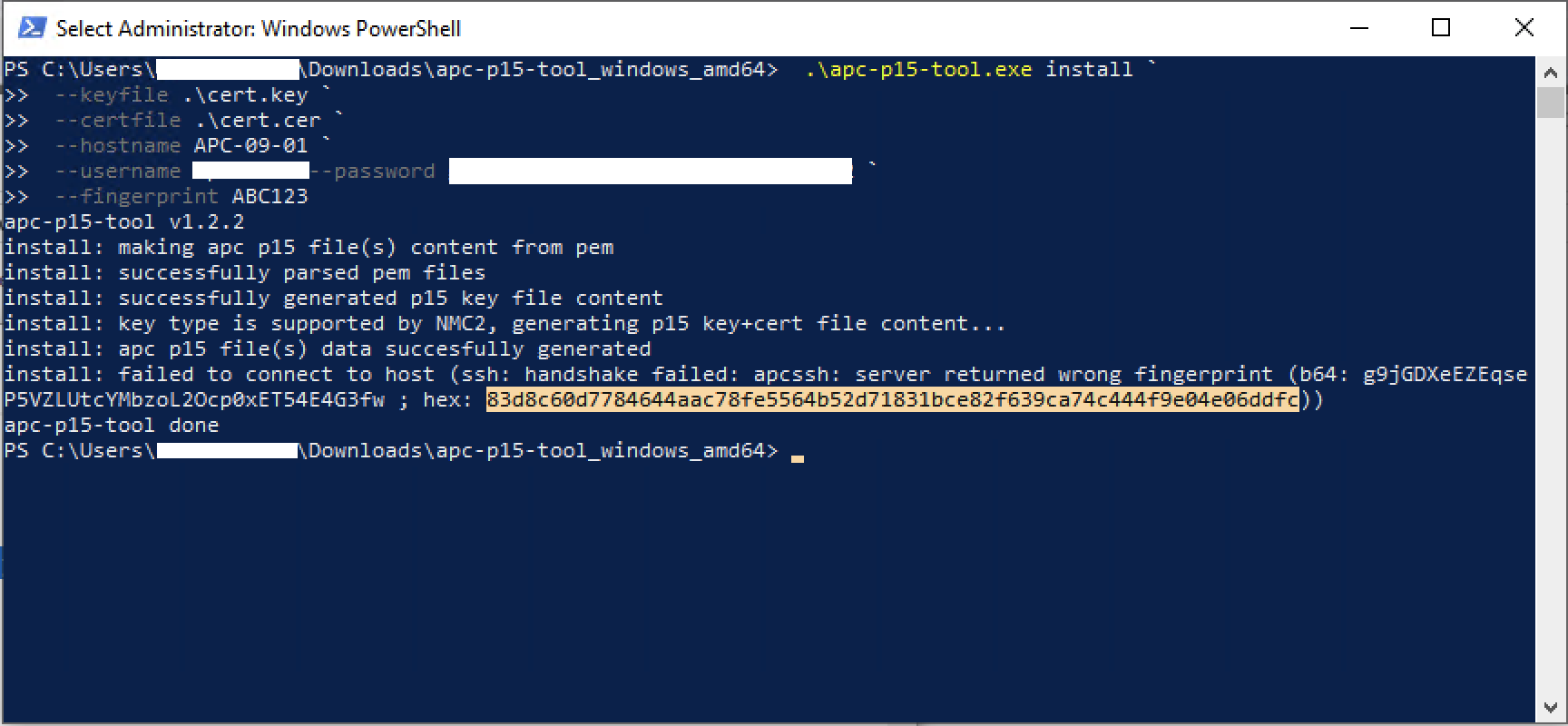
- SSH has to be enabled on your device for this command to work
- If
APC P15 Toolran properly then the NMC now has a HTTPS certificate installed (which can be confirmed by navigating to the NMC's management portal)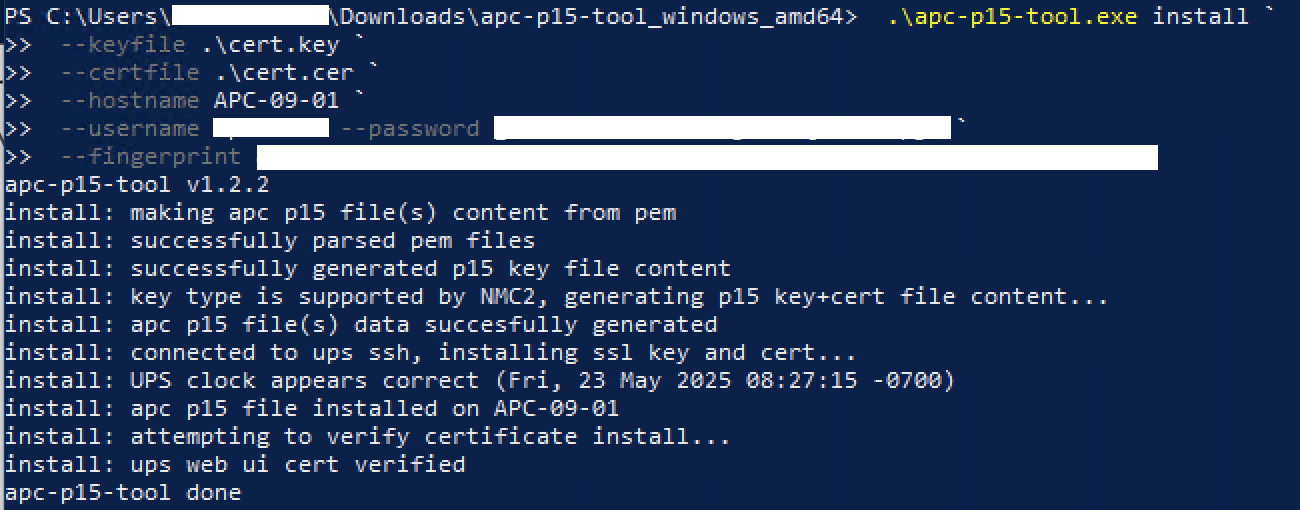
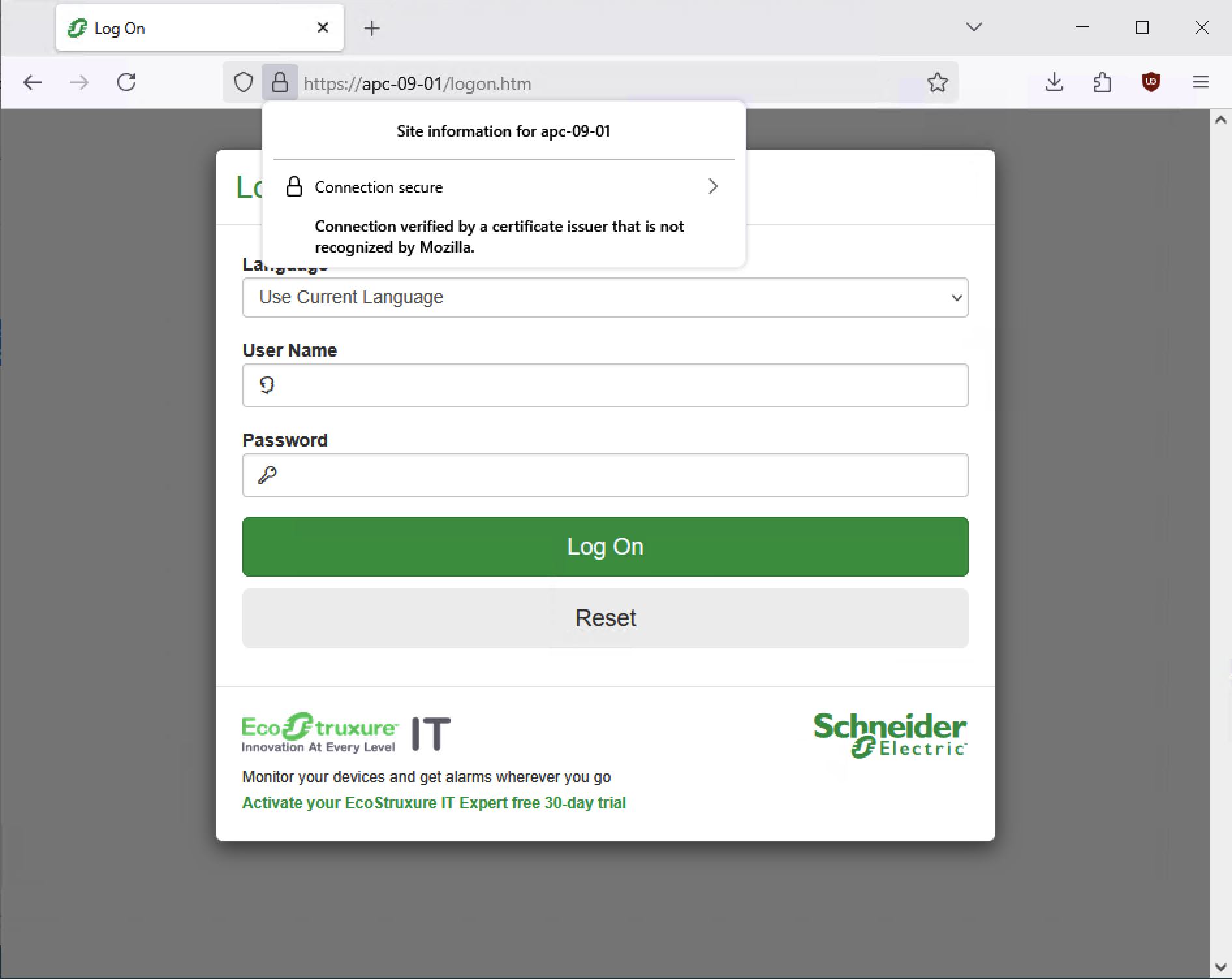
Web Portal Install
-
Download the latest version of
APC P15 Toolfor your operating system and unzip the .zip file -
Copy over your previously created certificate and key files to the newly extracted folder containing
APC P15 Tooland then launch a console session (in my case PowerShell) from this folder (or navigate to it) -
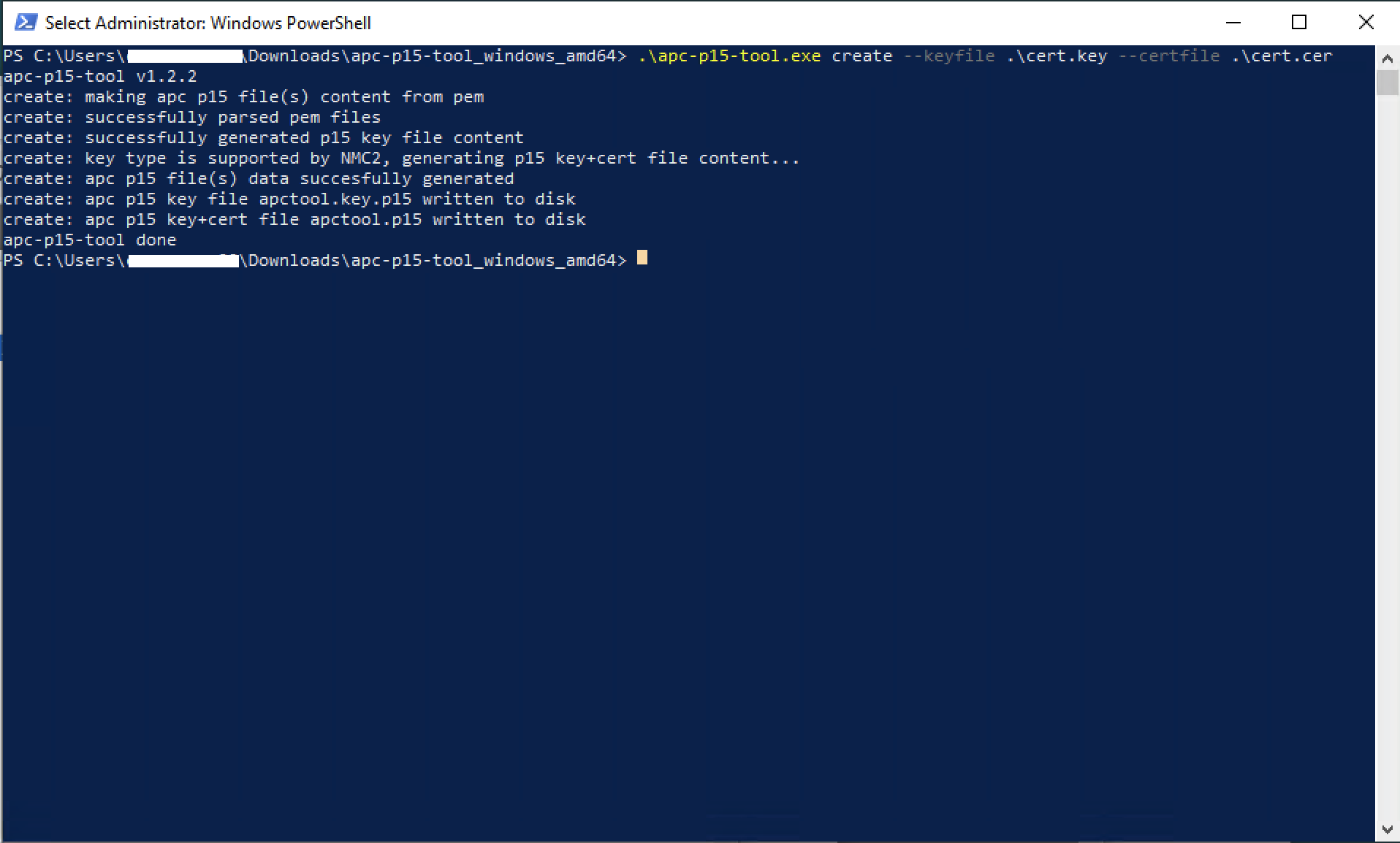
We are now going to run the following command to generate the
.p15file (the file will be created in the folder where the command was run).\apc-p15-tool.exe create --keyfile .\YOURKEY.key --certfile .\YOURCERT.cer
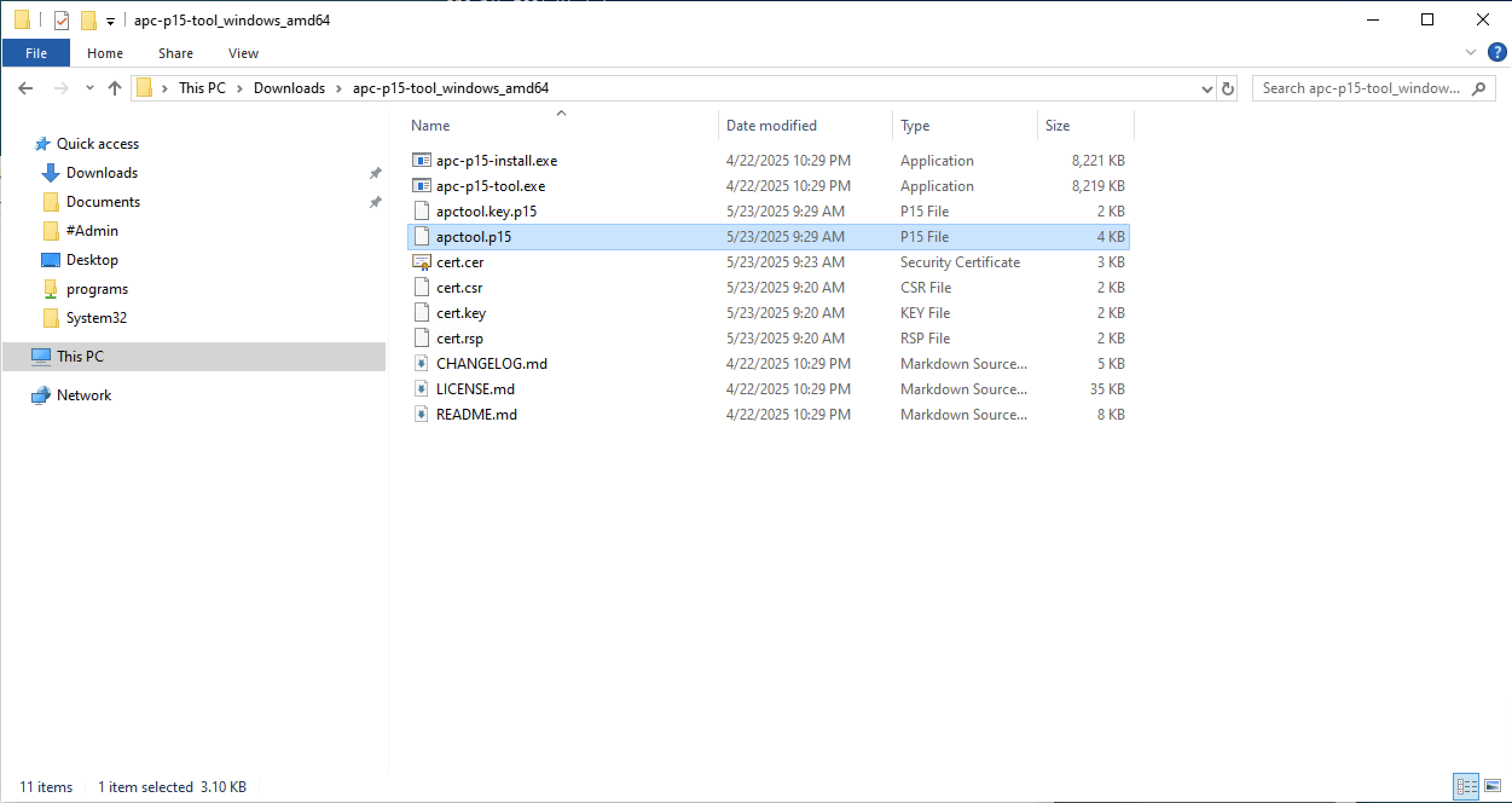
-
Navigate to the NMC's management portal, sign in with your admin account, and then install the newly created
.p15certificate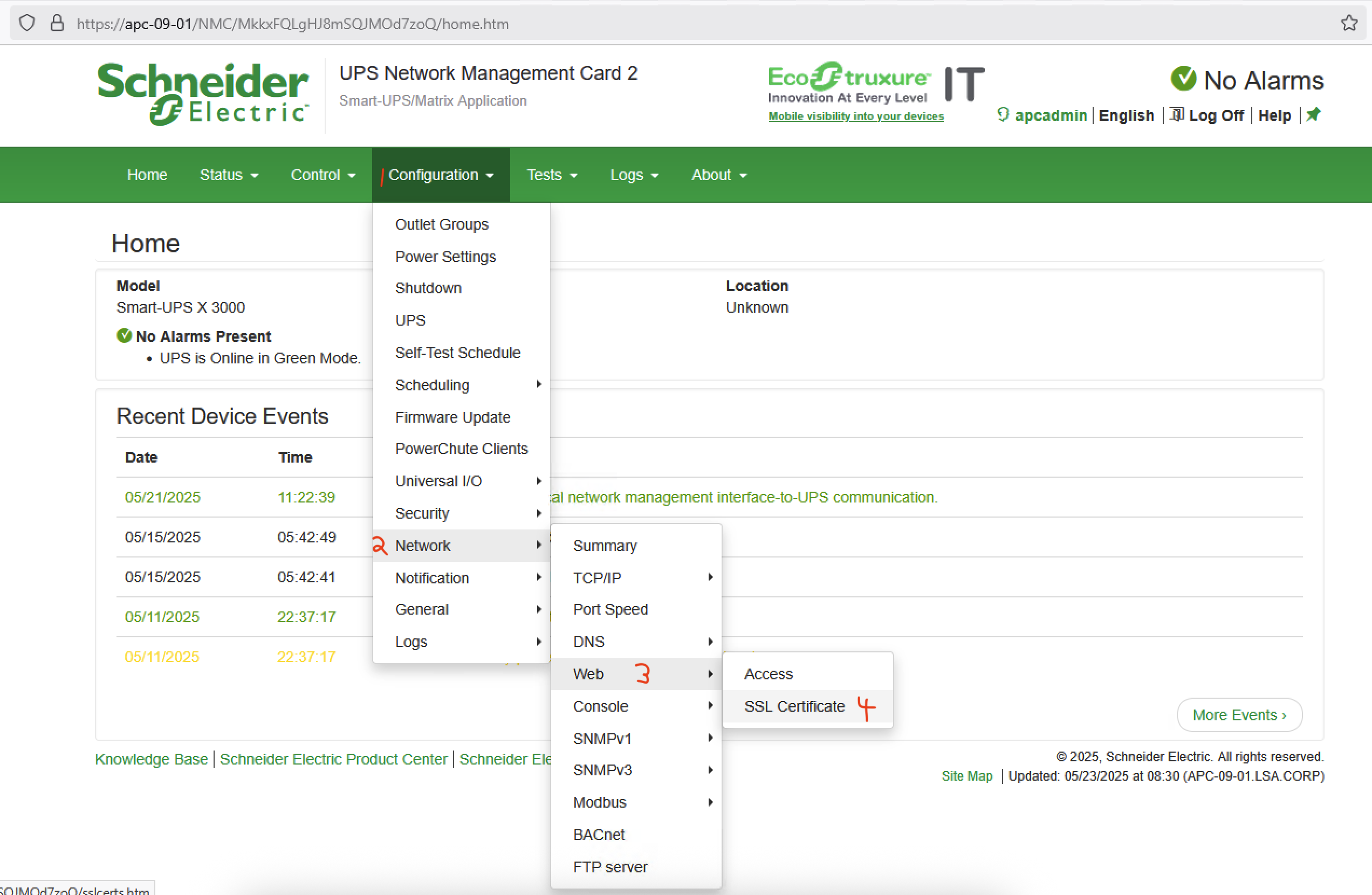
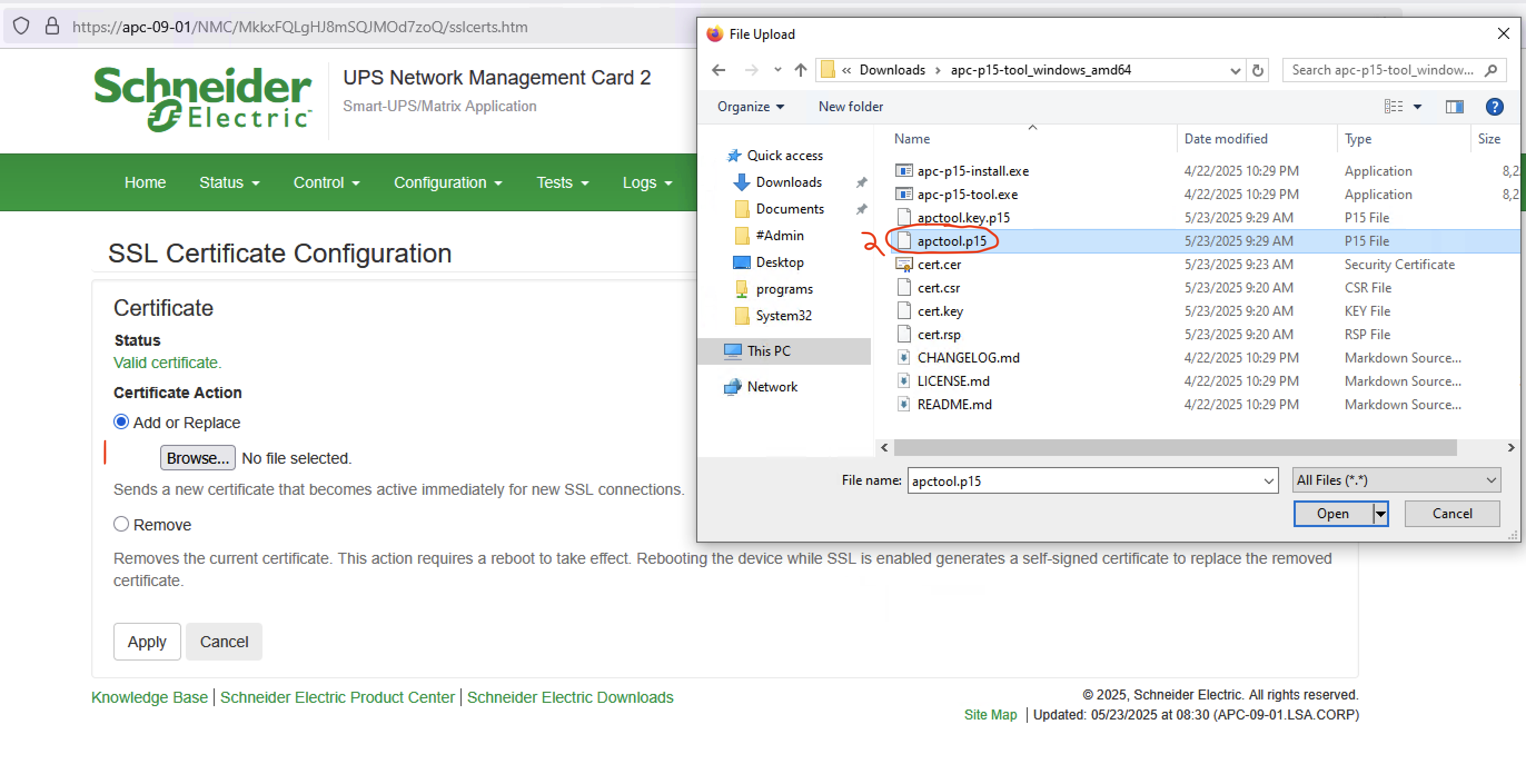
-
Once installed, your NMC now has a HTTPS certificate!
Update: Automated Script
Thanks to the help of Claude, I made a beast of the script that performs the following:
- Generates a Certificate Request.
- It submits the request to your internal Certificate Authority, automatically handles the approval process, and downloads the issued certificate.
- It converts the issued certificate and its private key into the separate
.pemfiles required by the deployment tool. - Automatically uses
nmapto scan the APC device and retrieve its SHA256 SSH fingerprint, which is required for the deployment tool to connect securely. - Uses the
apc-p15-tool.exeutility to log into the APC device and install the newly generated certificate and private key. - After the process is complete, it asks if you want to delete the temporary certificate files it created.
Perquisites
Software
- Windows PowerShell: The script is designed to run on a Windows machine.
- Active Directory Certificate Services Tools: The command-line tools
certreq.exeandcertutil.exemust be available. These are typically installed via the Remote Server Administration Tools (RSAT) for Windows. apc-p15-tool: You must download this tool from its GitHub page. The sanitized script assumesapc-p15-tool.exeis in your system's PATH, so it can be run from any directory.- Winget (Recommended): The script uses the Windows Package Manager (
winget) to automatically installOpenSSLandNmapif they are not found. Winget is included by default in modern versions of Windows 10 and 11.
Permissions and Network Access
- Administrator Privileges: Because the script may need to install
OpenSSLorNmapviawinget, it should be run from a PowerShell session with Administrator privileges. - Network Connectivity: The computer running the script requires network access to both your Certificate Authority server and the target device.
- Certificate Authority Permissions: The user or computer account running the script must have "Enroll" permissions on the certificate template you specify.
- PowerShell Execution Policy: Your system's execution policy must allow scripts to run. You may need to set this by running
Set-ExecutionPolicy RemoteSignedfrom an administrative PowerShell window.
To run the script:
.\Deploy-DeviceCertificate_Sanitized.ps1 -DeviceName "my-pdu" `
                                          -FQDN "my-pdu.example.com" `
                                          -CAServer "ca-server.example.com\My-CA" `
                                          -Template "WebServer" `
                                          -APCUsername "apcadmin" `
                                          -APCPassword "YourPassword" `
                                          -SSHFingerprint "TheSshFingerprint" `
                                          -WorkingDirectory "C:\Temp\Certs" `
                                          -APCToolPath "C:\Path\To\apc-p1s-tool.exe"
Deploy-DeviceCertificate.ps1
<#
.SYNOPSIS
Automates certificate provisioning and deployment for network devices like APC PDUs.
.DESCRIPTION
This script automates the complete certificate lifecycle for supported network devices:
1. Generates a certificate signing request (CSR) and private key.
2. Submits the request to a Microsoft Active Directory Certificate Authority.
3. Approves and retrieves the certificate.
4. Converts the certificate to PEM format.
5. Deploys the certificate to the device using the apc-p15-tool.
.PARAMETER DeviceName
The name or IP address of the target device (e.g., "my-pdu" or "192.168.1.100"). This is used for DNS resolution and as a Subject Alternative Name (SAN).
.PARAMETER FQDN
The fully qualified domain name for the certificate (e.g., "my-pdu.example.com"). This will be the certificate's Common Name (CN).
.PARAMETER CAServer
The Certificate Authority server and instance (e.g., "ca-server.example.com\My-CA").
.PARAMETER Template
The certificate template to use (e.g., "WebServer").
.PARAMETER APCUsername
Username for device SSH access (default: "apc").
.PARAMETER APCPassword
Password for device SSH access. If not provided, will prompt securely.
.PARAMETER WorkingDirectory
Directory to store temporary certificate files (default: $env:TEMP\APC-Certs).
.PARAMETER APCToolPath
Path to the apc-p15-tool executable. Defaults to 'apc-p15-tool.exe', assuming it is in the system's PATH.
.EXAMPLE
.\Deploy-APCCertificate.ps1 -DeviceName "my-pdu" -FQDN "my-pdu.example.com" -CAServer "ca-server\My-CA" -Template "WebServer" -APCPassword "SecurePass123"
.EXAMPLE
.\Deploy-APCCertificate.ps1 -DeviceName "192.168.1.100" -FQDN "my-pdu.example.com" -CAServer "ca-server\My-CA" -Template "WebServer"
.NOTES
Date: 2026-01-14
Requires: Windows with certreq, certutil, and OpenSSL.
Requires: Network connectivity to the CA and the target device.
Requires: apc-p15-tool (https://github.com/gregtwallace/apc-p15-tool).
#>
[CmdletBinding()]
param(
[Parameter(Mandatory = $true, HelpMessage = "Name or IP address of the device")]
[string]$DeviceName,
[Parameter(Mandatory = $true, HelpMessage = "The fully qualified domain name for the certificate (e.g., 'mydevice.example.com')")]
[string]$FQDN,
[Parameter(Mandatory = $true, HelpMessage = "The Certificate Authority server (e.g., 'ca-server.example.com\\My-CA')")]
[string]$CAServer,
[Parameter(Mandatory = $true, HelpMessage = "The certificate template to use (e.g., 'WebServer')")]
[string]$Template,
[Parameter(Mandatory = $false)]
[string]$APCUsername = "apc",
[Parameter(Mandatory = $false)]
[string]$APCPassword,
[Parameter(Mandatory = $false)]
[string]$SSHFingerprint,
[Parameter(Mandatory = $false)]
[string]$WorkingDirectory = "$env:TEMP\APC-Certs",
[Parameter(Mandatory = $false)]
[string]$APCToolPath = "apc-p15-tool.exe"
)
# Enable strict mode for better error handling
Set-StrictMode -Version Latest
$ErrorActionPreference = "Stop"
#region Functions
function Write-Log {
param(
[string]$Message,
[ValidateSet('Info', 'Warning', 'Error', 'Success')]
[string]$Level = 'Info'
)
$timestamp = Get-Date -Format "yyyy-MM-dd HH:mm:ss"
$color = switch ($Level) {
'Info' { 'Cyan' }
'Warning' { 'Yellow' }
'Error' { 'Red' }
'Success' { 'Green' }
}
Write-Host "[$timestamp] [$Level] $Message" -ForegroundColor $color
}
function Test-Prerequisites {
Write-Log "Checking prerequisites..." -Level Info
# Check if running on Windows (only check in PowerShell Core 6+)
if ($PSVersionTable.PSVersion.Major -ge 6 -and -not $IsWindows) {
throw "This script must be run on Windows"
}
# Check for certreq
$certreq = Get-Command certreq -ErrorAction SilentlyContinue
if (-not $certreq) {
throw "certreq.exe not found. Please ensure Windows Certificate Services tools are installed."
}
# Check for certutil
$certutil = Get-Command certutil -ErrorAction SilentlyContinue
if (-not $certutil) {
throw "certutil.exe not found. Please ensure Windows Certificate Services tools are installed."
}
# Check for openssl
$openssl = Get-Command openssl -ErrorAction SilentlyContinue
if (-not $openssl) {
Write-Log "OpenSSL not found in PATH. Checking common installation locations..." -Level Warning
# Common OpenSSL installation paths
$commonPaths = @(
"C:\Program Files\OpenSSL-Win64\bin",
"C:\Program Files (x86)\OpenSSL-Win32\bin",
"C:\OpenSSL-Win64\bin",
"C:\OpenSSL-Win32\bin",
"$env:ProgramFiles\OpenSSL-Win64\bin",
"${env:ProgramFiles(x86)}\OpenSSL-Win32\bin"
)
$foundPath = $null
foreach ($path in $commonPaths) {
if (Test-Path (Join-Path $path "openssl.exe")) {
$foundPath = $path
Write-Log "Found OpenSSL at: $foundPath" -Level Info
break
}
}
if ($foundPath) {
# Add to current session PATH
$env:Path = "$foundPath;$env:Path"
Write-Log "Added OpenSSL to PATH for current session" -Level Success
# Verify it works now
$openssl = Get-Command openssl -ErrorAction SilentlyContinue
if (-not $openssl) {
throw "Found OpenSSL at $foundPath but still cannot execute it. Please add it to your system PATH."
}
} else {
# Try to install via winget
Write-Log "OpenSSL not found in common locations. Attempting to install via winget..." -Level Warning
$winget = Get-Command winget -ErrorAction SilentlyContinue
if ($winget) {
try {
Write-Log "Installing OpenSSL via winget..." -Level Info
$wingetResult = winget install --id ShiningLight.OpenSSL.Light --silent --accept-package-agreements --accept-source-agreements 2>&1
# Refresh environment variables
$env:Path = [System.Environment]::GetEnvironmentVariable("Path","Machine") + ";" + [System.Environment]::GetEnvironmentVariable("Path","User")
# Check again in common paths
foreach ($path in $commonPaths) {
if (Test-Path (Join-Path $path "openssl.exe")) {
$env:Path = "$path;$env:Path"
Write-Log "OpenSSL installed and added to PATH" -Level Success
break
}
}
# Final check
$openssl = Get-Command openssl -ErrorAction SilentlyContinue
if (-not $openssl) {
throw "OpenSSL installation completed but openssl.exe is not accessible. Please restart your PowerShell session or add OpenSSL to your PATH manually."
}
}
catch {
throw "Failed to install or configure OpenSSL. Please install manually from https://slproweb.com/products/Win32OpenSSL.html and add it to your PATH."
}
} else {
throw "openssl.exe not found and winget is not available. Please install OpenSSL manually from https://slproweb.com/products/Win32OpenSSL.html and add it to your PATH."
}
}
}
# Check for apc-p15-tool
if (-not (Get-Command $APCToolPath -ErrorAction SilentlyContinue)) {
throw "apc-p15-tool not found. Ensure '$APCToolPath' is in your system's PATH or provide the full path using the -APCToolPath parameter."
}
# Check for nmap
$nmap = Get-Command nmap -ErrorAction SilentlyContinue
if (-not $nmap) {
Write-Log "nmap not found in PATH. Checking common installation locations..." -Level Warning
$nmapPath = "C:\Program Files (x86)\Nmap"
if (Test-Path (Join-Path $nmapPath "nmap.exe")) {
Write-Log "Found nmap at: $nmapPath" -Level Info
$env:Path = "$nmapPath;$env:Path"
Write-Log "Added nmap to PATH for current session" -Level Success
} else {
Write-Log "nmap not found in common locations. Attempting to install via winget..." -Level Warning
$winget = Get-Command winget -ErrorAction SilentlyContinue
if ($winget) {
try {
Write-Log "Installing Nmap via winget..." -Level Info
winget install --id Insecure.Nmap --silent --accept-package-agreements --accept-source-agreements
$env:Path = [System.Environment]::GetEnvironmentVariable("Path","Machine") + ";" + [System.Environment]::GetEnvironmentVariable("Path","User")
if (Test-Path (Join-Path $nmapPath "nmap.exe")) {
$env:Path = "$nmapPath;$env:Path"
Write-Log "Nmap installed and added to PATH" -Level Success
} else {
throw "Nmap installation completed but nmap.exe is not accessible. Please restart your PowerShell session or add it to your PATH manually."
}
}
catch {
throw "Failed to install Nmap. Please install it manually from https://nmap.org/download.html and add it to your PATH."
}
} else {
throw "nmap.exe not found and winget is not available. Please install Nmap manually from https://nmap.org/download.html and add it to your PATH."
}
}
}
Write-Log "All prerequisites met" -Level Success
}
function New-CertificateRequest {
param(
[string]$SubjectName,
[string]$ShortName,
[string]$OutputPath
)
Write-Log "Generating certificate request for $SubjectName..." -Level Info
# Attempt to resolve IP address from the short name
$ip = $null
try {
$ip = (Resolve-DnsName -Name $ShortName -Type A -ErrorAction SilentlyContinue).IPAddress
if ($ip) {
Write-Log "Resolved IP address for ${ShortName}: $ip" -Level Info
} else {
Write-Log "Could not resolve IP address for $ShortName. It will be omitted from the certificate." -Level Warning
}
} catch {
Write-Log "DNS resolution for $ShortName failed. IP address will be omitted from the certificate." -Level Warning
}
# Build the Subject Alternative Name (SAN) string
$sanEntries = @("dns=$SubjectName", "dns=$ShortName")
if ($ip) {
$sanEntries += "ipaddress=$ip"
}
$sanString = $sanEntries -join "&"
# Create INF file for certificate request
$infFile = Join-Path $OutputPath "request.inf"
$infContent = @"
[Version]
Signature="`$Windows NT`$"
[NewRequest]
Subject = "CN=$SubjectName"
KeySpec = 1
KeyLength = 2048
Exportable = TRUE
MachineKeySet = FALSE
SMIME = FALSE
PrivateKeyArchive = FALSE
UserProtected = FALSE
UseExistingKeySet = FALSE
ProviderName = "Microsoft RSA SChannel Cryptographic Provider"
ProviderType = 12
RequestType = PKCS10
KeyUsage = 0xa0
HashAlgorithm = SHA256
[EnhancedKeyUsageExtension]
OID=1.3.6.1.5.5.7.3.1 ; Server Authentication
[Extensions]
2.5.29.17 = "{text}"
_continue_ = "$sanString"
"@
Set-Content -Path $infFile -Value $infContent -Force
# Generate CSR
$csrFile = Join-Path $OutputPath "request.csr"
$keyFile = Join-Path $OutputPath "request.key"
try {
# Don't use -q flag so the request context is properly saved for later acceptance
# The UI prompt about exportable key will appear but that's necessary for certreq -accept to work
Write-Log "Note: You may see a prompt about making the private key exportable - click OK/Yes" -Level Info
certreq -new $infFile $csrFile 2>&1 | Out-Null
if (Test-Path $csrFile) {
Write-Log "Certificate request generated successfully" -Level Success
return $csrFile
} else {
throw "Failed to generate certificate request"
}
}
catch {
throw "Error generating certificate request: $_"
}
}
function Submit-CertificateRequest {
param(
[string]$CSRFile,
[string]$CAServerName,
[string]$TemplateName,
[string]$OutputPath
)
Write-Log "Submitting certificate request to CA: $CAServerName..." -Level Info
$certFile = Join-Path $OutputPath "certificate.cer"
try {
# Submit the request with the template attribute
Write-Log "Running: certreq -submit -config $CAServerName -attrib CertificateTemplate:$TemplateName" -Level Info
$result = certreq -submit -config $CAServerName -attrib "CertificateTemplate:$TemplateName" $CSRFile $certFile 2>&1
# Convert result to string for parsing
$resultString = $result | Out-String
Write-Log "Certreq output: $resultString" -Level Info
# Check for template errors
if ($resultString -match "not supported by|template.*not.*found|denied by policy") {
Write-Log "ERROR: The certificate template '$TemplateName' is not available or not supported by the CA." -Level Error
Write-Log "To see available templates, run: certutil -Template" -Level Info
Write-Log "Make sure the template name matches exactly (case-sensitive)." -Level Info
throw "Certificate template '$TemplateName' is not supported by the CA. Please check the template name."
}
# Extract request ID from output
$requestId = $null
if ($resultString -match "RequestId:\s*(\d+)") {
$requestId = $Matches[1]
Write-Log "Certificate request submitted with ID: $requestId" -Level Info
}
elseif ($resultString -match "Request ID is (\d+)") {
$requestId = $Matches[1]
Write-Log "Certificate request submitted with ID: $requestId" -Level Info
}
elseif ($resultString -match "RequestId\s*=\s*(\d+)") {
$requestId = $Matches[1]
Write-Log "Certificate request submitted with ID: $requestId" -Level Info
}
elseif ($resultString -match "(\d+)") {
# Try to find any number in the output as a last resort
$requestId = $Matches[1]
Write-Log "Certificate request submitted (Request ID: $requestId)" -Level Info
}
# Check if the certificate is pending or was issued
$isPending = $resultString -match "Taken Under Submission|pending"
# Check if certificate was issued immediately (and not just a .rsp file)
if ((Test-Path $certFile) -and -not $isPending) {
# Verify it's actually a certificate file, not just a response file
$fileContent = Get-Content $certFile -Raw
if ($fileContent -match "BEGIN CERTIFICATE") {
Write-Log "Certificate issued and downloaded successfully" -Level Success
Write-Log "Certificate file location: $certFile" -Level Info
return @{
RequestId = $requestId
CertFile = $certFile
Status = "Issued"
}
} else {
Write-Log "Certificate file exists but doesn't contain a valid certificate (may be a response file)" -Level Warning
}
} elseif ($isPending) {
Write-Log "Certificate is pending approval (status: Taken Under Submission)" -Level Warning
} else {
Write-Log "Certificate file not found at: $certFile" -Level Warning
}
# If not issued immediately, try to approve and retrieve it
if ($requestId) {
Write-Log "Certificate is pending approval. Attempting to approve..." -Level Info
# Approve the certificate
Write-Log "Running: certutil -config $CAServerName -resubmit $requestId" -Level Info
$approveResult = certutil -config $CAServerName -resubmit $requestId 2>&1
Write-Log "Approval result: $($approveResult | Out-String)" -Level Info
Start-Sleep -Seconds 2
# Retrieve the certificate
Write-Log "Running: certreq -retrieve -config $CAServerName $requestId $certFile" -Level Info
$retrieveResult = certreq -retrieve -config $CAServerName $requestId $certFile 2>&1
Write-Log "Retrieve result: $($retrieveResult | Out-String)" -Level Info
if (Test-Path $certFile) {
Write-Log "Certificate approved and retrieved successfully" -Level Success
Write-Log "Certificate file location: $certFile" -Level Info
return @{
RequestId = $requestId
CertFile = $certFile
Status = "Approved"
}
} else {
Write-Log "Certificate file still not found at: $certFile after retrieval" -Level Warning
}
}
# If we still don't have a certificate, output the result for debugging
Write-Log "Certificate request output: $resultString" -Level Warning
throw "Failed to obtain certificate. Certificate file was not created. Manual intervention may be required."
}
catch {
throw "Error submitting certificate request: $_"
}
}
function Convert-CertToPEM {
param(
[string]$CertFile,
[string]$OutputPath
)
Write-Log "Converting certificate to PEM format..." -Level Info
$pemCertFile = Join-Path $OutputPath "certificate.pem"
try {
# Verify the certificate file exists
if (-not (Test-Path $CertFile)) {
throw "Certificate file not found at: $CertFile. The certificate was not successfully retrieved from the CA."
}
# Check if it's already in PEM format (certreq sometimes outputs PEM directly)
$certContent = Get-Content $CertFile -Raw
if ($certContent -match "BEGIN CERTIFICATE") {
Write-Log "Certificate is already in PEM format, copying..." -Level Info
Copy-Item $CertFile $pemCertFile -Force
Write-Log "Certificate converted to PEM successfully" -Level Success
return $pemCertFile
}
# Resolve to full path to avoid issues with short paths (~1 format)
$fullCertPath = (Resolve-Path $CertFile).Path
$fullPemPath = Join-Path (Resolve-Path $OutputPath).Path "certificate.pem"
# Convert DER to PEM using OpenSSL
Write-Log "Running: openssl x509 -inform DER -in `"$fullCertPath`" -out `"$fullPemPath`"" -Level Info
$opensslOutput = & openssl x509 -inform DER -in "$fullCertPath" -out "$fullPemPath" 2>&1
if ($LASTEXITCODE -ne 0) {
$errorMsg = $opensslOutput | Out-String
Write-Log "OpenSSL error: $errorMsg" -Level Error
throw "OpenSSL failed to convert certificate: $errorMsg"
}
if (Test-Path $fullPemPath) {
Write-Log "Certificate converted to PEM successfully" -Level Success
return $fullPemPath
} else {
throw "Failed to convert certificate to PEM - output file not created"
}
}
catch {
throw "Error converting certificate: $_"
}
}
function Export-PrivateKeyToPEM {
param(
[string]$SubjectName,
[string]$OutputPath,
[string]$CertFile
)
Write-Log "Exporting private key to PEM format..." -Level Info
$pfxFile = Join-Path $OutputPath "temp_with_key.pfx"
$pemKeyFile = Join-Path $OutputPath "privatekey.pem"
try {
# Try to accept the certificate using the response file (.rsp) which contains the full chain
$rspFile = Join-Path $OutputPath "certificate.rsp"
Write-Log "Installing certificate with private key to store..." -Level Info
# Try the .rsp file first (full response with chain)
if (Test-Path $rspFile) {
Write-Log "Accepting certificate using response file..." -Level Info
$acceptOutput = certreq -accept -user $rspFile 2>&1
$acceptResult = $acceptOutput | Out-String
Write-Log "Accept output: $acceptResult" -Level Info
} else {
# Fallback to .cer file
Write-Log "Response file not found, trying certificate file..." -Level Info
$acceptOutput = certreq -accept -user $CertFile 2>&1
$acceptResult = $acceptOutput | Out-String
Write-Log "Accept output: $acceptResult" -Level Info
}
Start-Sleep -Seconds 2
# Find the certificate with private key in the certificate store
Write-Log "Searching for certificate in CurrentUser\My store..." -Level Info
$cert = Get-ChildItem -Path Cert:\CurrentUser\My -ErrorAction SilentlyContinue | Where-Object {
$_.Subject -like "*$SubjectName*" -and $_.HasPrivateKey
} | Sort-Object NotBefore -Descending | Select-Object -First 1
if (-not $cert) {
Write-Log "Certificate not found in CurrentUser\My store, checking LocalMachine\My..." -Level Warning
$cert = Get-ChildItem -Path Cert:\LocalMachine\My -ErrorAction SilentlyContinue | Where-Object {
$_.Subject -like "*$SubjectName*" -and $_.HasPrivateKey
} | Sort-Object NotBefore -Descending | Select-Object -First 1
}
if (-not $cert) {
# List all certificates in the store for debugging
Write-Log "Listing all certificates in CurrentUser\My:" -Level Info
$allCerts = Get-ChildItem -Path Cert:\CurrentUser\My -ErrorAction SilentlyContinue
foreach ($c in $allCerts) {
Write-Log " - Subject: $($c.Subject), HasPrivateKey: $($c.HasPrivateKey), Thumbprint: $($c.Thumbprint)" -Level Info
}
throw "Certificate with private key not found in certificate store after accepting. Subject: $SubjectName"
}
Write-Log "Found certificate: $($cert.Thumbprint)" -Level Info
# Determine the store path
$storePath = if ($cert.PSPath -like "*LocalMachine*") { "Cert:\LocalMachine\My" } else { "Cert:\CurrentUser\My" }
# Export to PFX with private key
$pfxPassword = ConvertTo-SecureString -String "temp123" -Force -AsPlainText
Export-PfxCertificate -Cert $cert -FilePath $pfxFile -Password $pfxPassword -Force | Out-Null
# Convert PFX to PEM private key using OpenSSL
$fullPfxPath = (Resolve-Path $pfxFile).Path
$fullPemKeyPath = Join-Path (Resolve-Path $OutputPath).Path "privatekey.pem"
Write-Log "Extracting private key from PFX..." -Level Info
$passwordArg = "pass:temp123"
& openssl pkcs12 -in "$fullPfxPath" -nocerts -out "$fullPemKeyPath" -nodes -passin $passwordArg 2>&1 | Out-Null
# Clean up temporary PFX file
if (Test-Path $pfxFile) {
Remove-Item $pfxFile -Force
}
# Remove the certificate from the store to clean up
Write-Log "Cleaning up certificate from store..." -Level Info
Remove-Item -Path "$storePath\$($cert.Thumbprint)" -Force -ErrorAction SilentlyContinue
if (Test-Path $fullPemKeyPath) {
Write-Log "Private key exported to PEM successfully" -Level Success
return $fullPemKeyPath
} else {
throw "Failed to export private key to PEM"
}
}
catch {
throw "Error exporting private key: $_"
}
}
function Get-SSHFingerprint {
param(
[string]$Hostname
)
Write-Log "Attempting to retrieve SSH fingerprint using nmap..." -Level Info
# Find nmap executable
$nmapPath = Get-Command nmap -ErrorAction SilentlyContinue
if (-not $nmapPath) {
$nmapExe = "C:\Program Files (x86)\Nmap\nmap.exe"
if (Test-Path $nmapExe) {
Write-Log "Found nmap at default location: $nmapExe" -Level Info
$nmapPath = $nmapExe
}
}
if (-not $nmapPath) {
Write-Log "nmap command not found in PATH or default location." -Level Warning
Write-Log "Please install Nmap or provide the fingerprint manually using -SSHFingerprint." -Level Warning
return $null
}
try {
# Execute nmap to get the SHA256 fingerprint
$arguments = @(
"-p", "22",
"--script", "ssh-hostkey",
"--script-args", "ssh_hostkey=sha256",
$Hostname
)
Write-Log "Running nmap to get SSH fingerprint..." -Level Info
# Use Start-Process to handle potential executable paths with spaces
$process = Start-Process -FilePath $nmapPath -ArgumentList $arguments -Wait -NoNewWindow -PassThru -RedirectStandardOutput "$env:TEMP\nmap-output.txt"
if ($process.ExitCode -ne 0) {
Write-Log "Nmap failed with exit code $($process.ExitCode)." -Level Warning
return $null
}
$nmapOutput = Get-Content "$env:TEMP\nmap-output.txt" -Raw
# Parse the output to find the SHA256 key
$match = $nmapOutput | Select-String -Pattern "SHA256:([a-zA-Z0-9+/=]+)"
if ($match) {
$fingerprint = $match.Matches[0].Groups[1].Value
Write-Log "Found SHA256 fingerprint with nmap: $fingerprint" -Level Success
return $fingerprint
} else {
Write-Log "Could not find SHA256 fingerprint in nmap output." -Level Warning
Write-Log "Nmap output: $nmapOutput" -Level Info
return $null
}
}
catch {
Write-Log "An error occurred while running nmap: $_" -Level Error
return $null
} finally {
if (Test-Path "$env:TEMP\nmap-output.txt") {
Remove-Item "$env:TEMP\nmap-output.txt" -Force
}
}
}
function Deploy-CertificateToAPC {
param(
[string]$KeyFile,
[string]$CertFile,
[string]$Hostname,
[string]$Username,
[string]$Password,
[string]$Fingerprint
)
Write-Log "Deploying certificate to APC device: $Hostname..." -Level Info
try {
# Use provided fingerprint or try to get it
if ($Fingerprint) {
Write-Log "Using provided SSH fingerprint: $Fingerprint" -Level Info
} else {
Write-Log "No fingerprint provided, attempting to retrieve automatically..." -Level Info
$Fingerprint = Get-SSHFingerprint -Hostname $Hostname
if (-not $Fingerprint) {
Write-Log "Could not retrieve fingerprint automatically." -Level Warning
Write-Log "" -Level Warning
Write-Log "SOLUTION: Provide the SSH fingerprint using the -SSHFingerprint parameter" -Level Warning
Write-Log "" -Level Warning
Write-Log "To get the fingerprint, run this command:" -Level Info
Write-Log " ssh $Username@$Hostname" -Level Info
Write-Log "" -Level Info
Write-Log "When prompted about the host authenticity, you'll see the SHA256 fingerprint." -Level Info
Write-Log "Copy the fingerprint (WITHOUT the 'SHA256:' prefix) and run:" -Level Info
Write-Log " -SSHFingerprint 'lKw59CiKrBvRzx1f/j+jSYuXfDQXaKItdMSpj2'" -Level Info
Write-Log "" -Level Info
throw "SSH fingerprint required but not provided or retrievable"
}
}
# Use the apc-p15-tool to install the certificate
$arguments = @(
"install",
"--keyfile", $KeyFile,
"--certfile", $CertFile,
"--hostname", $Hostname,
"--username", $Username,
"--password", $Password
)
# Add fingerprint if provided
if ($Fingerprint) {
$arguments += "--fingerprint"
$arguments += $Fingerprint
}
Write-Log "Executing: apc-p15-tool install..." -Level Info
$process = Start-Process -FilePath $APCToolPath -ArgumentList $arguments -Wait -PassThru -NoNewWindow -RedirectStandardOutput "$env:TEMP\apc-output.txt" -RedirectStandardError "$env:TEMP\apc-error.txt"
if ($process.ExitCode -eq 0) {
Write-Log "Certificate deployed to APC device successfully" -Level Success
# Show output
if (Test-Path "$env:TEMP\apc-output.txt") {
$output = Get-Content "$env:TEMP\apc-output.txt" -Raw
if ($output) {
Write-Log "APC Tool Output: $output" -Level Info
}
}
} else {
$errorOutput = ""
if (Test-Path "$env:TEMP\apc-error.txt") {
$errorOutput = Get-Content "$env:TEMP\apc-error.txt" -Raw
}
throw "APC tool failed with exit code $($process.ExitCode). Error: $errorOutput"
}
}
catch {
throw "Error deploying certificate to APC: $_"
}
}
#endregion
#region Main Script
try {
Write-Log "Starting APC certificate deployment process..." -Level Info
Write-Log "Target Device: $DeviceName" -Level Info
# Prompt for password if not provided
if (-not $APCPassword) {
$securePassword = Read-Host "Enter APC device password for user '$APCUsername'" -AsSecureString
$APCPassword = [System.Runtime.InteropServices.Marshal]::PtrToStringAuto(
[System.Runtime.InteropServices.Marshal]::SecureStringToBSTR($securePassword)
)
}
# Test prerequisites
Test-Prerequisites
# Create working directory
if (-not (Test-Path $WorkingDirectory)) {
New-Item -Path $WorkingDirectory -ItemType Directory -Force | Out-Null
}
Write-Log "Working directory: $WorkingDirectory" -Level Info
# Step 1: Generate certificate request
$csrFile = New-CertificateRequest -SubjectName $FQDN -ShortName $DeviceName -OutputPath $WorkingDirectory
# Step 2: Submit certificate request to CA
$certResult = Submit-CertificateRequest -CSRFile $csrFile -CAServerName $CAServer -TemplateName $Template -OutputPath $WorkingDirectory
# Step 3: Convert certificate to PEM
$pemCertFile = Convert-CertToPEM -CertFile $certResult.CertFile -OutputPath $WorkingDirectory
# Step 4: Export private key to PEM
$pemKeyFile = Export-PrivateKeyToPEM -SubjectName $FQDN -OutputPath $WorkingDirectory -CertFile $certResult.CertFile
# Step 5: Deploy to APC device
Deploy-CertificateToAPC -KeyFile $pemKeyFile -CertFile $pemCertFile -Hostname $DeviceName -Username $APCUsername -Password $APCPassword -Fingerprint $SSHFingerprint
Write-Log "Certificate deployment completed successfully!" -Level Success
Write-Log "Certificate files are located in: $WorkingDirectory" -Level Info
# Cleanup option
$cleanup = Read-Host "Do you want to delete the temporary certificate files? (Y/N)"
if ($cleanup -eq 'Y' -or $cleanup -eq 'y') {
Remove-Item -Path $WorkingDirectory -Recurse -Force
Write-Log "Temporary files cleaned up" -Level Success
}
}
catch {
Write-Log "Error: $($_.Exception.Message)" -Level Error
Write-Log "Stack Trace: $($_.ScriptStackTrace)" -Level Error
exit 1
}
#endregion