Ubuntu 24.04 LTS Automatic Updates with Unattended-upgrades and SMTP2GO
Archived post · originally published · may be out of date
Article inspiration:
- https://www.ajfriesen.com/automatic-server-updates/
- https://askubuntu.com/questions/554665/configure-unattended-upgrades-notification-e-mails-from-address
- https://websistent.com/how-to-use-msmtp-with-gmail-yahoo-and-php-mail/
Intro
Linux can be a very humbling experience. A straightforward and basic task turns into a half-day venture until, after much trial and effort, you figure out the solution to your problem. That solution? Usually a 5 minute fix but because you didn't know what you were supposed to know, it takes you a large amount of time to piece together all the required knowledge until you figure out the solution. Luckily for me, you can learn from my painful experience of configuring Unattended-upgrades to send email notifications with SMTP2GO.
If you are unaware of what Unattended-upgrades is, it is an application that allows you to automatically update your Ubuntu server and then optionally send out an email alert.
The TL;DR of this article, if you have used Unattended-upgrades before, is to:
- Install
msmtpandUnattended-upgradessudo apt install unattended-upgrades msmtp ca-certificates
- Configure
Unattended-upgradesandmsmtpas you normally would - Create a symlink linking
msmtptosendmail(a common mail application but overly complicated to configure IMO andmsmtpis far easier to use)ln -s /usr/bin/msmtp /usr/sbin/sendmail- By default
Unattended-upgradesattempts to send mail via either thesendmailor themailapplication
- By default
Guide
The server I am working with is running Ubuntu 24.04.1 LTS and I am also using SMTP2GO as my SMTP host, however you are free to use whatever SMTP host you would like. I am a big fan of SMTP2GO due to the simplicity of the platform and the generous free plan that I utilize daily; you can sign up for their service here.
Before proceeding, we do have to install the required applications:
sudo apt install unattended-upgrades msmtp ca-certificates
Also we need to create a symlink linking msmtp to sendmail:
ln -s /usr/bin/msmtp /usr/sbin/sendmail
Configure msmtp
Next we are going to create a configuration file for msmtp via the terminal so copy my work below and modify accordingly before pasting:
sudo bash -c 'cat <<EOF > /etc/msmtprc

# Set default values for all following accounts.
defaults
auth           on
tls            on
tls_trust_file /etc/ssl/certs/ca-certificates.crt
logfile        /var/log/msmtp.log

# smtp2go
account        smtp2go
host           mail.smtp2go.com
port           587
from           [EMAIL ADDRESS ALERTS WILL BE SENT FROM]
user           [YOUR SMTP2GO SMTP USERNAME]
password       [YOUR SMTP2GO SMTP PASSWORD]

# Set a default account
account default: smtp2go

EOF'
ConfigureUnattended-upgrades
Finally we are going to create another configuration file but this time for Unattended-upgrades (so we do not touch the default configuration file) so copy my work below and modify it again before pasting:
sudo bash -c 'cat <<EOF > /etc/apt/apt.conf.d/51unattended-upgrades-custom
Unattended-Upgrade::Allowed-Origins {
        "${distro_id}:${distro_codename}";
        "${distro_id}:${distro_codename}-security";
        "${distro_id}ESMApps:${distro_codename}-apps-security";
        "${distro_id}ESM:${distro_codename}-infra-security";
        "${distro_id}:${distro_codename}-updates";
        "Docker:${distro_codename}";
};


Unattended-Upgrade::Mail "[EMAIL THAT WILL RECEIVE YOUR ALERTS]";
Unattended-Upgrade::Sender "Unattended-upgrades [YOUR HOST NAME] <EMAIL ADDRESS ALERTS WILL BE SENT FROM>";
Unattended-Upgrade::MailReport "only-on-error";
Unattended-Upgrade::Remove-Unused-Kernel-Packages "true";
Unattended-Upgrade::Remove-New-Unused-Dependencies "true";
Unattended-Upgrade::Remove-Unused-Dependencies "true";
Unattended-Upgrade::Automatic-Reboot "true";
Unattended-Upgrade::Automatic-Reboot-Time "23:00";

EOF'
My configuration file performs the following:
- Updates all packages from Ubuntu
- Will update Docker if you have that installed
- Sends an email alert when the service runs into an error
- For testing purpose, you may want to change
Unattended-Upgrade::MailReport "only-on-error";toUnattended-Upgrade::MailReport "always";to test your email settings and then revert accordingly
- For testing purpose, you may want to change
- Remove unused kernel and other dependencies
- Automatically reboot the server at 11:00pm
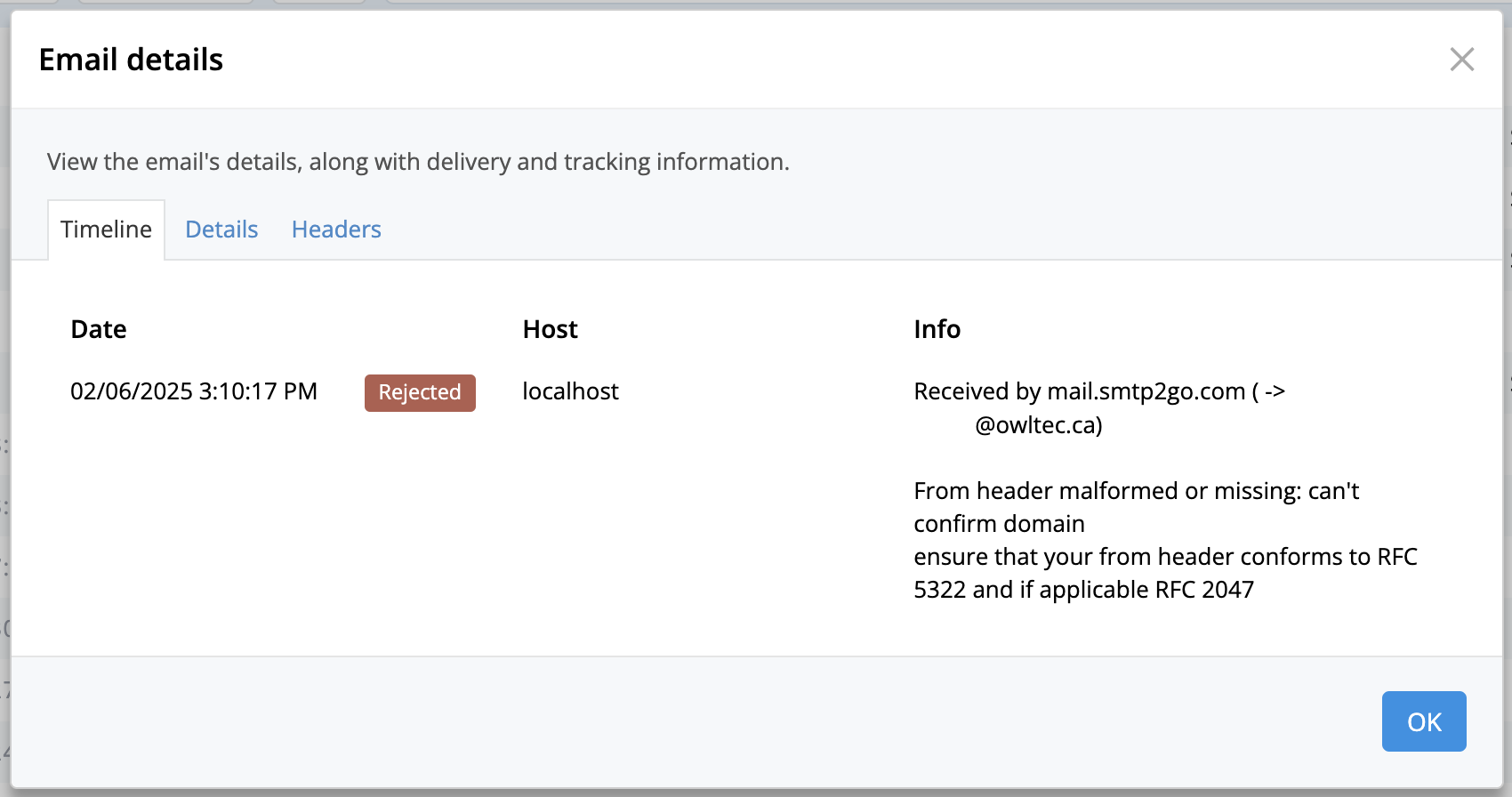
It is extremely important to configure the Unattended-Upgrade::Sender "Unattended-upgrades [YOUR HOST NAME] <EMAIL ADDRESS ALERTS WILL BE SENT FROM>"; option correctly so that your email will have a proper header as otherwise SMTP2GO will reject your email with a 550 error -> can't confirm domain ensure that your from header conforms to RFC 5322 and if applicable RFC message:
For a complete list of options for Unattended-upgrades, check out the default configuration file for Unattended-upgrades located in /etc/apt/apt.conf.d/50unattended-upgrades that outlines all the options.
Testing
Finally, let's do a test run by running the following command: sudo unattended-upgrade -v
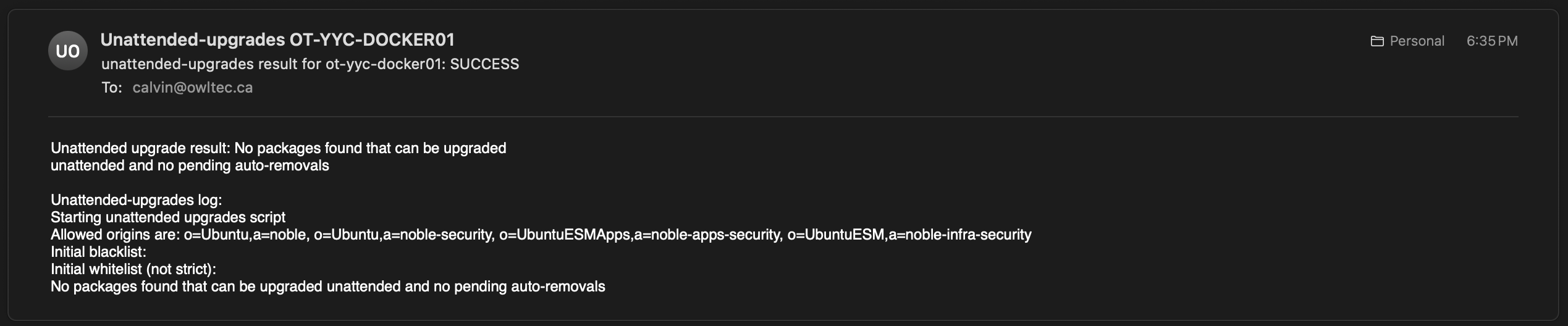
If successful you should receive an email similar to mine:
Now in the future, your Ubuntu server will now automatically update itself and send you an email when it has done so!