How to increase the UEFI System Partition size in Windows 11 (during install and setup) & How to fix Lenovo ThinkPad T14 Gen5s (AMD) from being unable to update their BIOS
Archived post · originally published · may be out of date
Article inspiration:
- https://www.ctrl.blog/entry/how-to-esp-windows-setup.html
Update (2025/03/28):
Looks like Lenovo has addressed the bad BIOS problem, however I am still uncertain if AMD Lenovo Thinkpads will be able to apply the BIOS update due to the previously mentioned UEFI System Partition issues:
- http://ghacks.net/2025/03/28/windows-bug-blocks-bios-updates-for-lenovo-thinkpad-laptops/
Intro
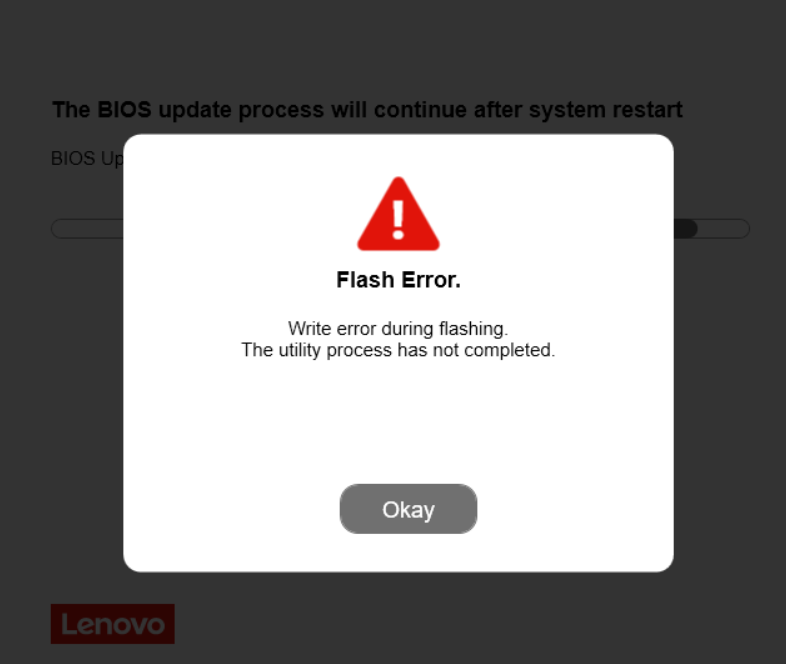
Nothing better than getting a few dozen brand new laptops from Lenovo (ThinkPad T14 Gen5 -AMD Processors) and every single one of them is essentially a brick as they came from the factory flashed with a faulty BIOS image. The new Lenovo laptops are crippled as basic functionality, such as wireless functionality, is broken. Worse yet, when installing the new BIOS update that fixes these issues you are greeted with the following error message:
Flash Error.

Write error during flashing.
The utility process has not completed.
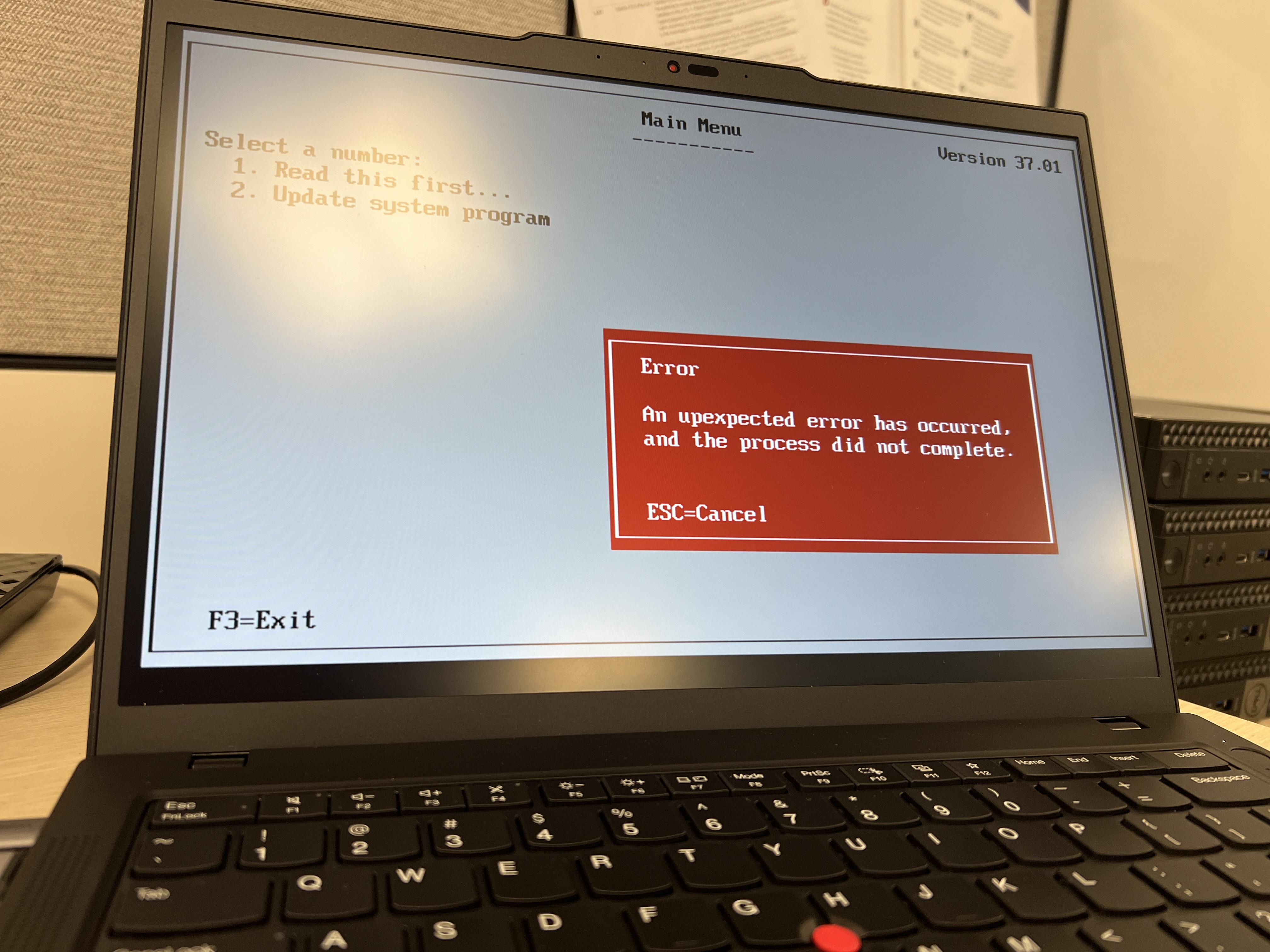
And if you were like me and, in an attempt born of desperation, you tried installing the BIOS update via a CD/DVD and then you were also greeted with this error message:
Error

An unexpected error has occurred,
and the process did not complete.

ESC=Cancel
The Problem and Solution
Painfully, I figured out what the problem is as this specifically applies to Lenovo laptops with AMD processors:
- The default UEFI System Partition size is simply too small (only 100-200 MB) for new BIOS updates and should be increased (ideally to 1 GB)
- Unfortunately this is a very common problem that Lenovo, for some reason, has simply ignored for years now
There are two ways we can increase the UEFI System Partition size:
- Re-install Windows 11 and during the setup, increase the UEFI System Partition size (which is what this guide focuses on)
- Utilize a third-party tool to resize the existing UEFI System Partition such as EaseUS Partition Manager
- I will not cover this method in this tutorial but if you do go down this route then make sure you properly back up your device before attempting to do so as there is a high chance that you will destroy your boot partition, and Windows will not be able to boot!
How to increase the UEFI System Partition size in Windows 11 (during install and setup)
To increase the UEFI System Partition size in Windows 11 during the install phase, it is very straightforward:
- Navigate through the Windows 11 installer until you get to the
Select location to install Windows 11page: - From here, we will launch
diskpartand manually create the UEFI System Partition:- Press
Shift + F10to open Command Prompt - Type in
diskpartand hit enter ->diskpartis now launched - Type in
list diskand then hit enter -> this command will show you all of the disks you can install Windows on so make note of theDisk ###that you want to install Windows on - From here, we will type
select disk XwithXbeing theDisk ###from the previous step -> for exampleselect disk 0 - We will now create the 1 GB UEFI System Partition with the following command
create partition efi size=1000-> where 1000 equals 1000 MB so 1GB - Finally, we will format and label the new partition with the following command
format quick fs=fat32 label=System - Close Command Prompt by clicking the X at the top right or type
exitand hit enter twice (once to exit diskpart, once to close Command Prompt) - Now refresh the page to see your newly created UEFI System Partition
- Select the unallocated partition space and select next -> then on the
Ready to installpage selectInstallto install Windows 11!- You can go back and see if the Windows installer properly created the other two partitions (MSR and Primary) before proceeding to install Windows 11
- Press
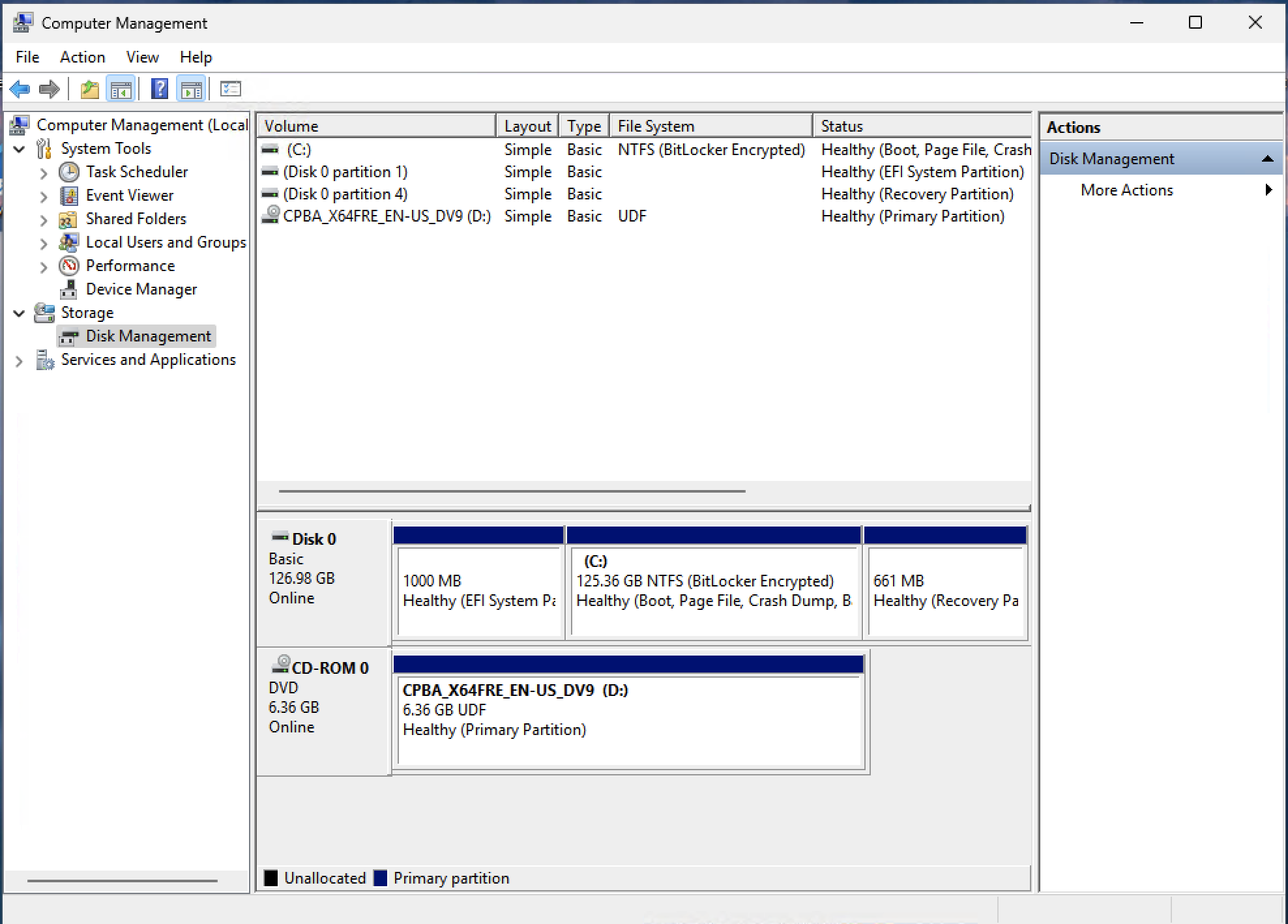
If everything went well, then when you sign onto Windows and open Disk Management, you should be able to see your customized UEFI System Partition:
Command Cheat Sheet
### Shift + F10 to open Command Prompt at the "Select location to install Windows 11" page

#Launch diskpart
diskpart

# Make note of the Disk ### that you want to install Windows on
list disk

# Select the Disk ### from the previous step
select disk 0

# We will now create the 1 GB UEFI System Partition
create partition efi size=1000

# We will now format and label the new partition
format quick fs=fat32 label=System

# Exit diskpart
exit
Conclusion -> How to fix your Lenovo T14 AMD Bios Not Updating
At this point, if you increased your UEFI System Partition size on your Lenovo laptop, you can now upgrade the BIOS normally either via a CD/DVD BIOS updater or once you are signed onto Windows, launching the BIOS updater utility you can download directly from Lenovo.