Hosting Thunderbird on Synology NAS
Archived post · originally published · may be out of date
Introduction
Since we moved our email hosting off Microsoft's Office 365, I wanted a quick method to manage mail rules on one device only but have the rules apply to all of my devices. Office allows you to host server-side rules, but my new provider is IMAP only and all of the mail rules I have created are client-side. This meant that unless a client was logged in and running, my phone would get overwhelmed by system messages and SPAM (I did not want to manage mail rules on my phone). The solution to this is to run Thunderbird in a container on my Synology.
I am going to assume that you already have configured Container Manager on your Synology.
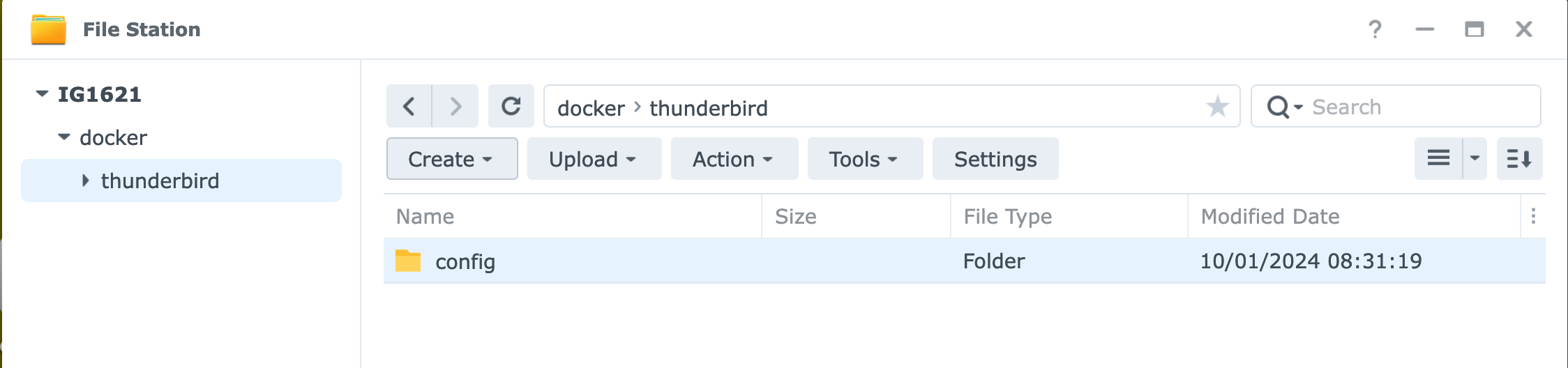
Create Persistent Storage for the Container
- Create a folder on your NAS under the Docker folder: thunderbird (lowercase)
- Create a sub-folder: config (lowercase)
Configuring the Container
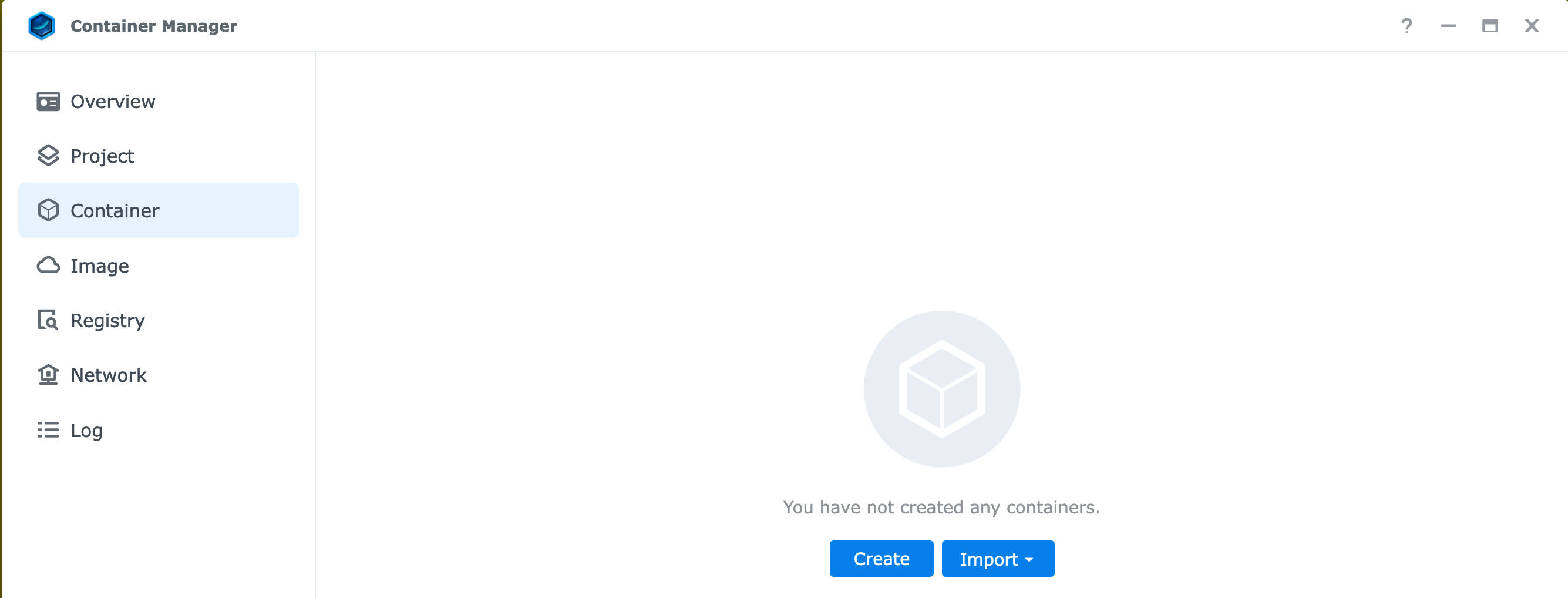
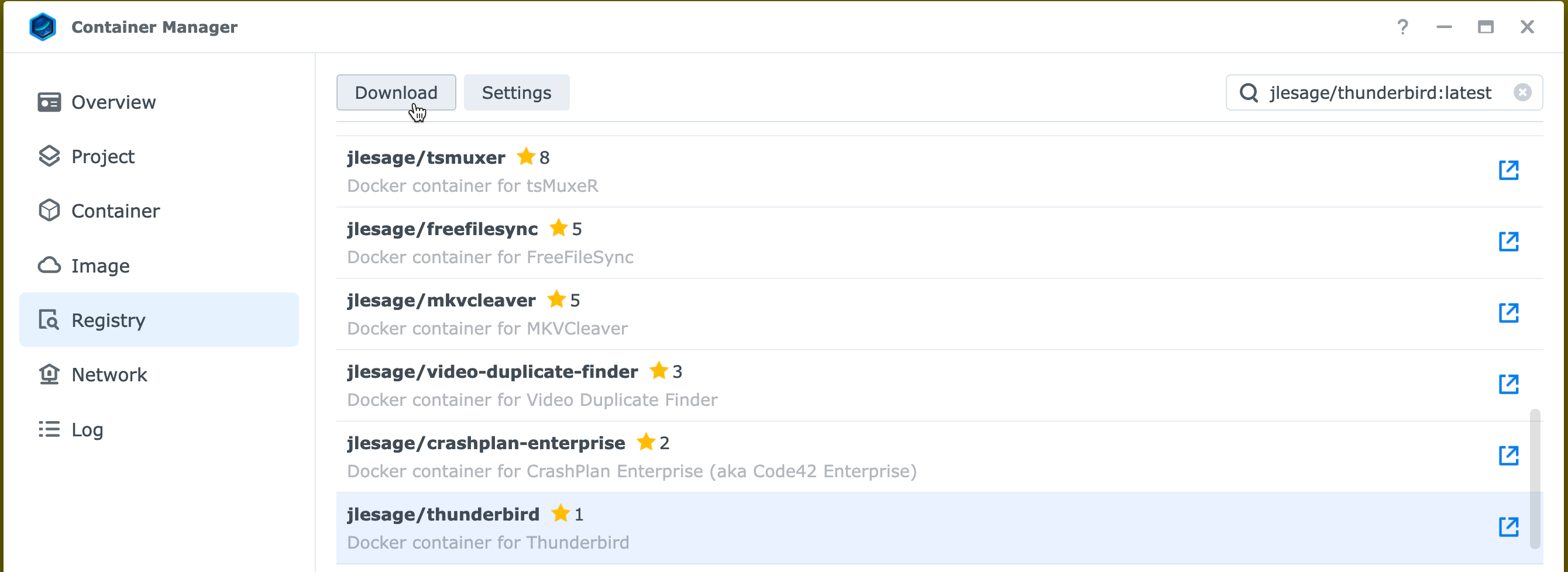
- Launch Container Manager and create a new image:
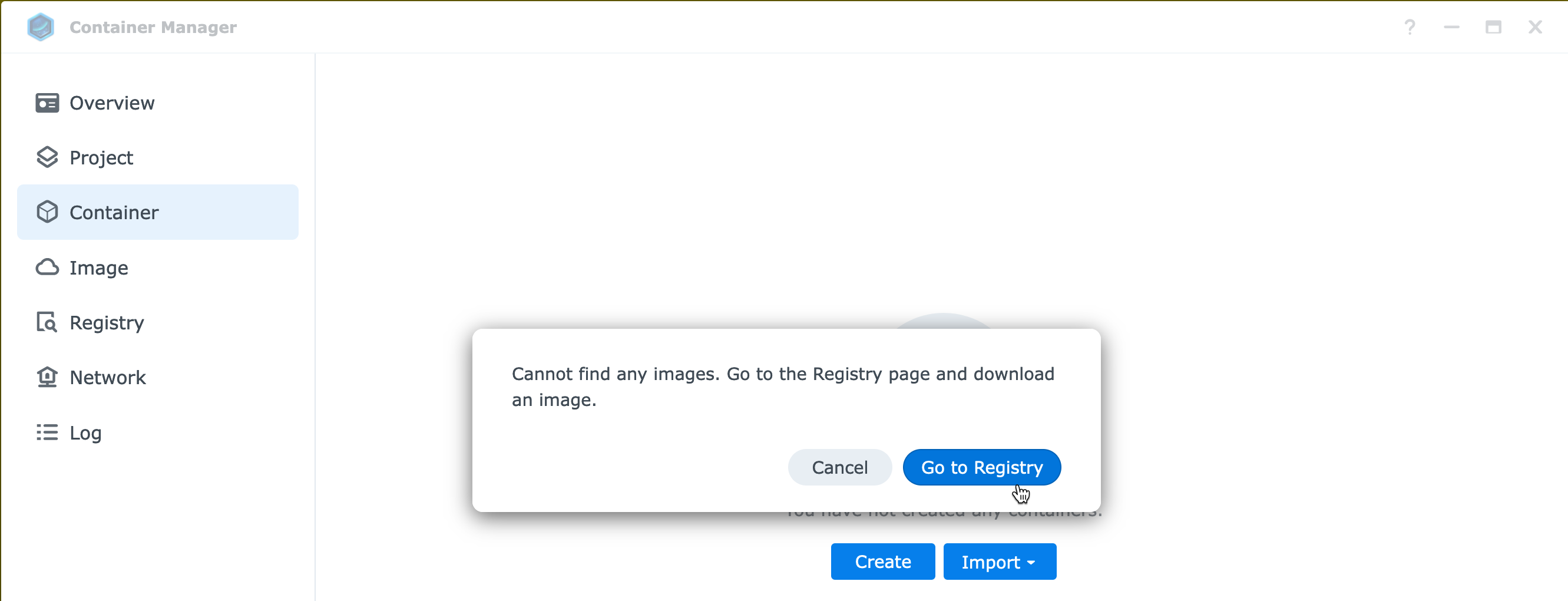
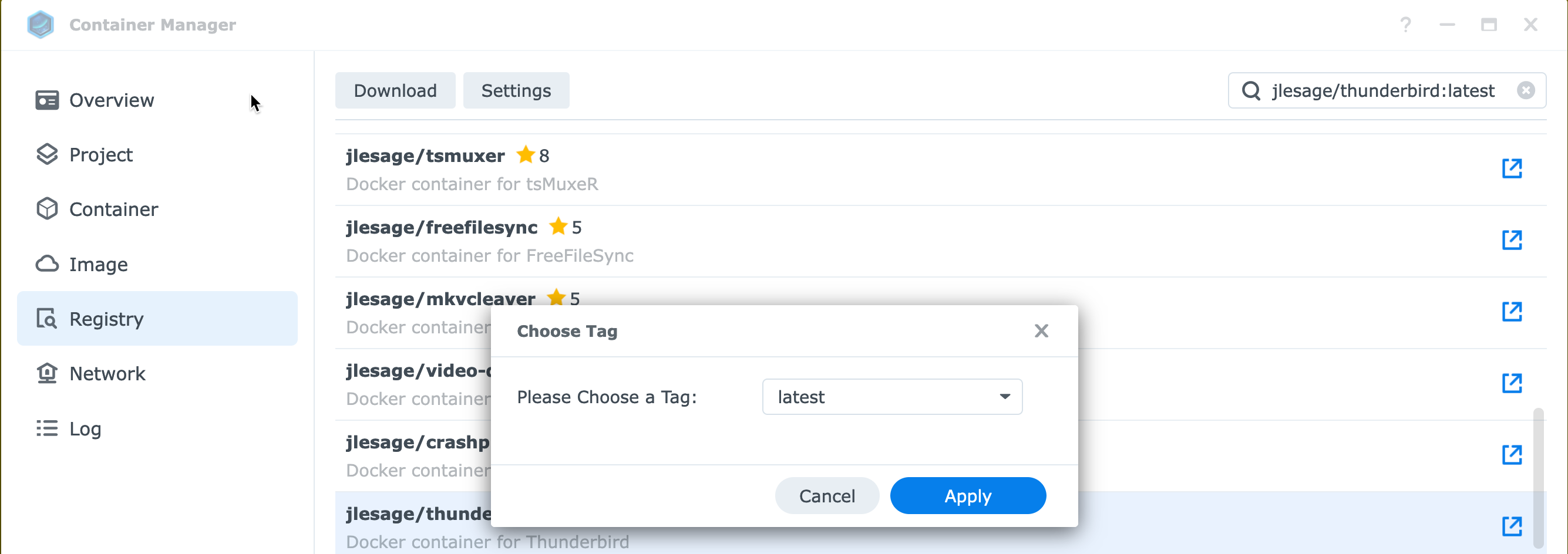
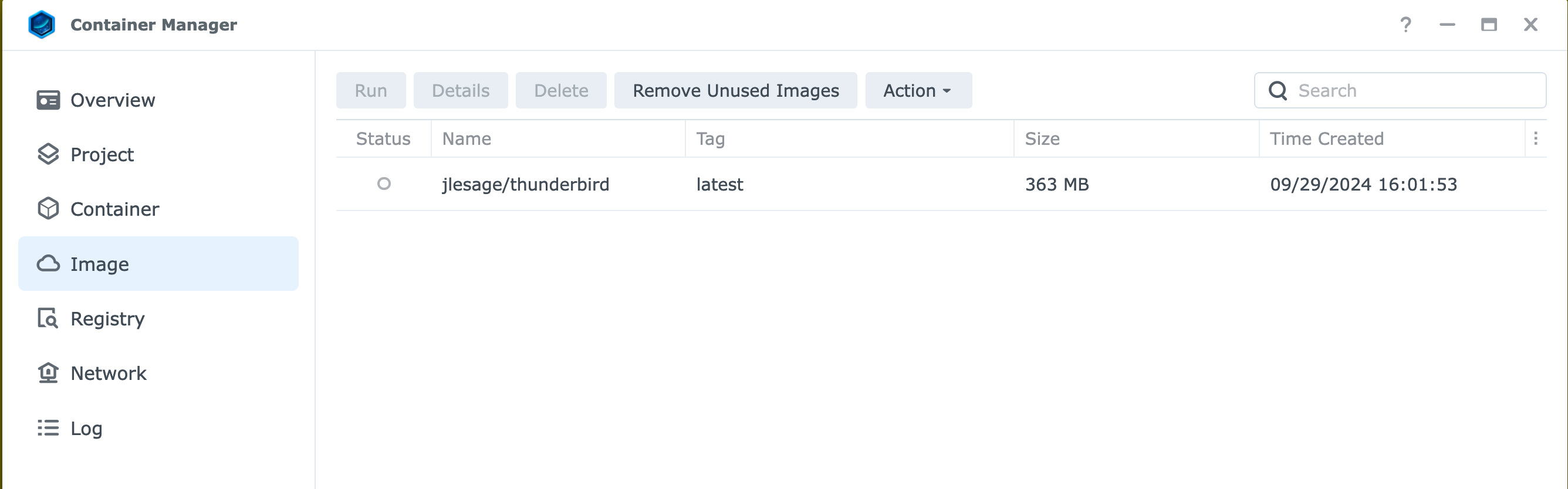
Type jlesage/thunderbird:latest, then download the image
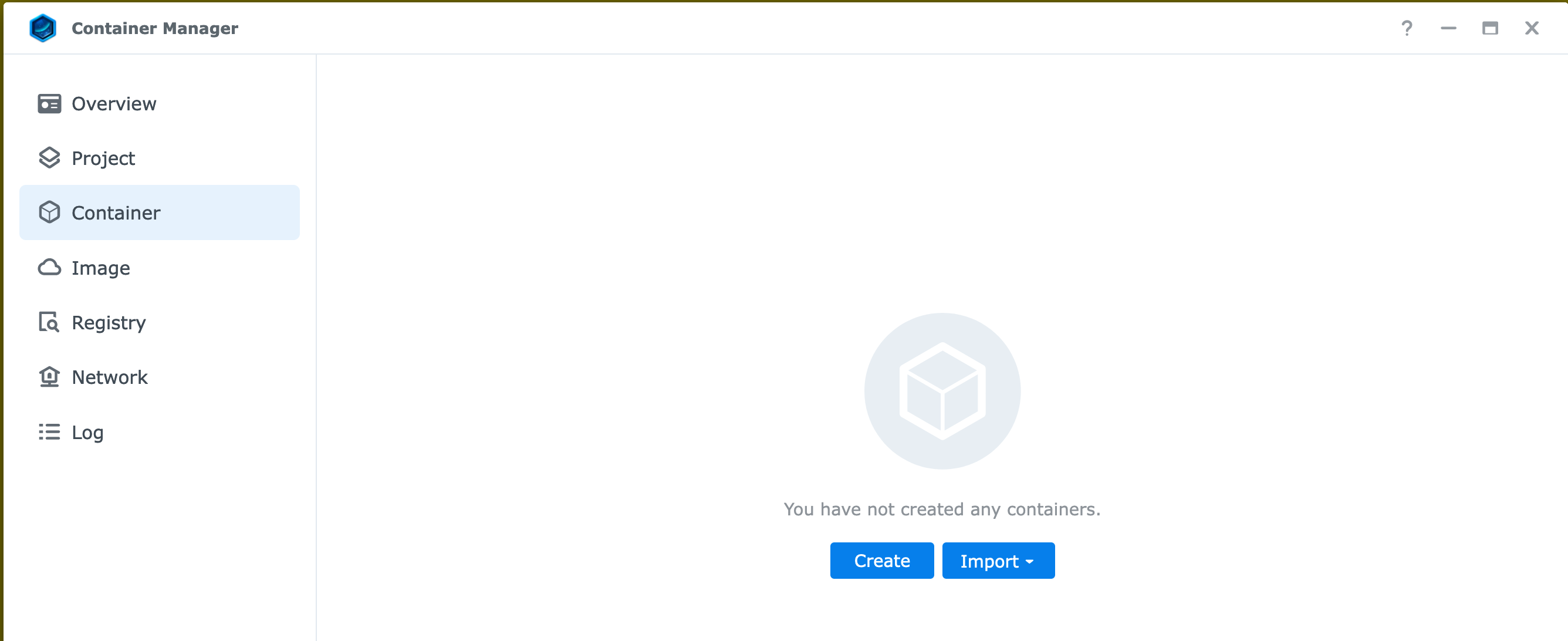
Select Container and then Create
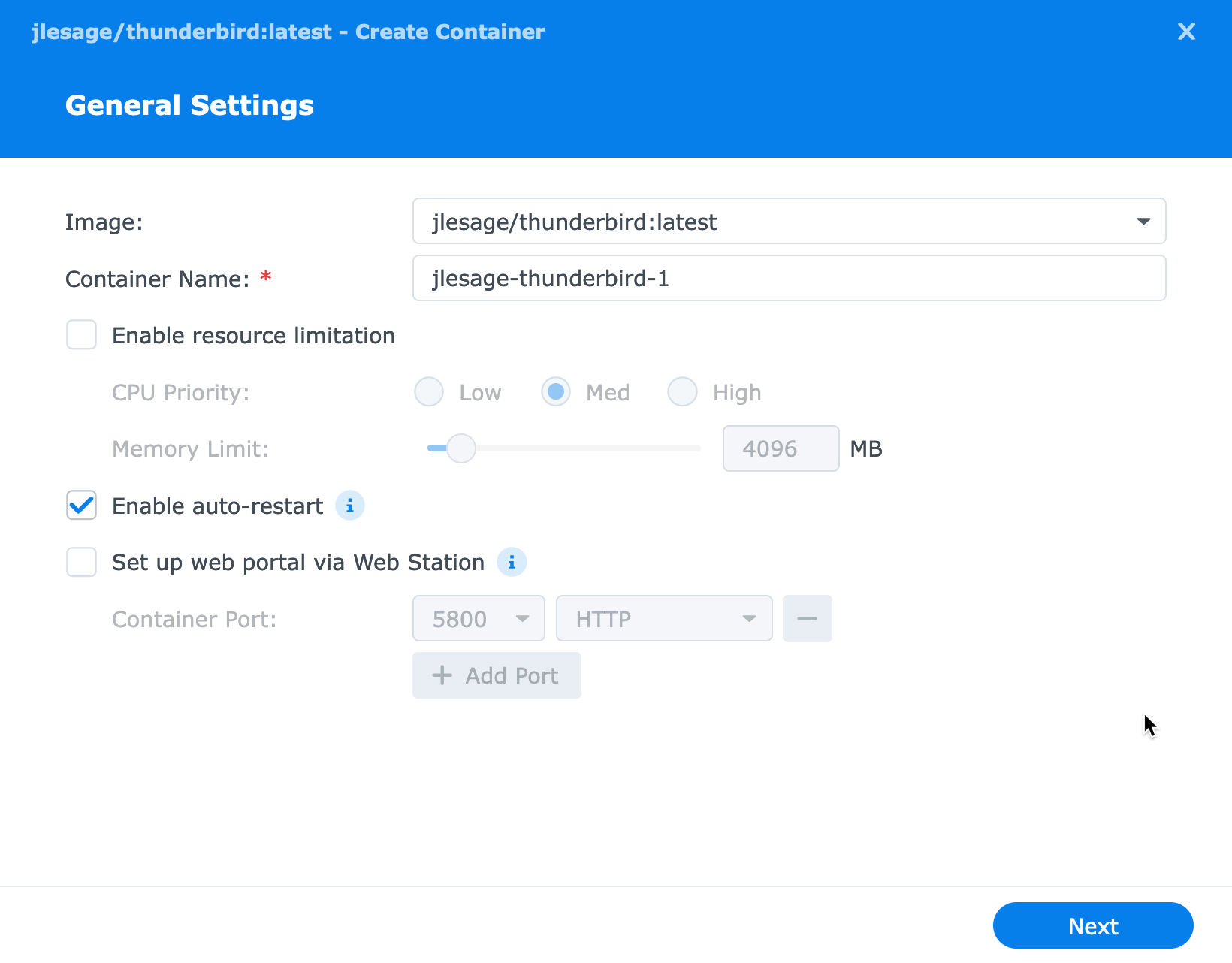
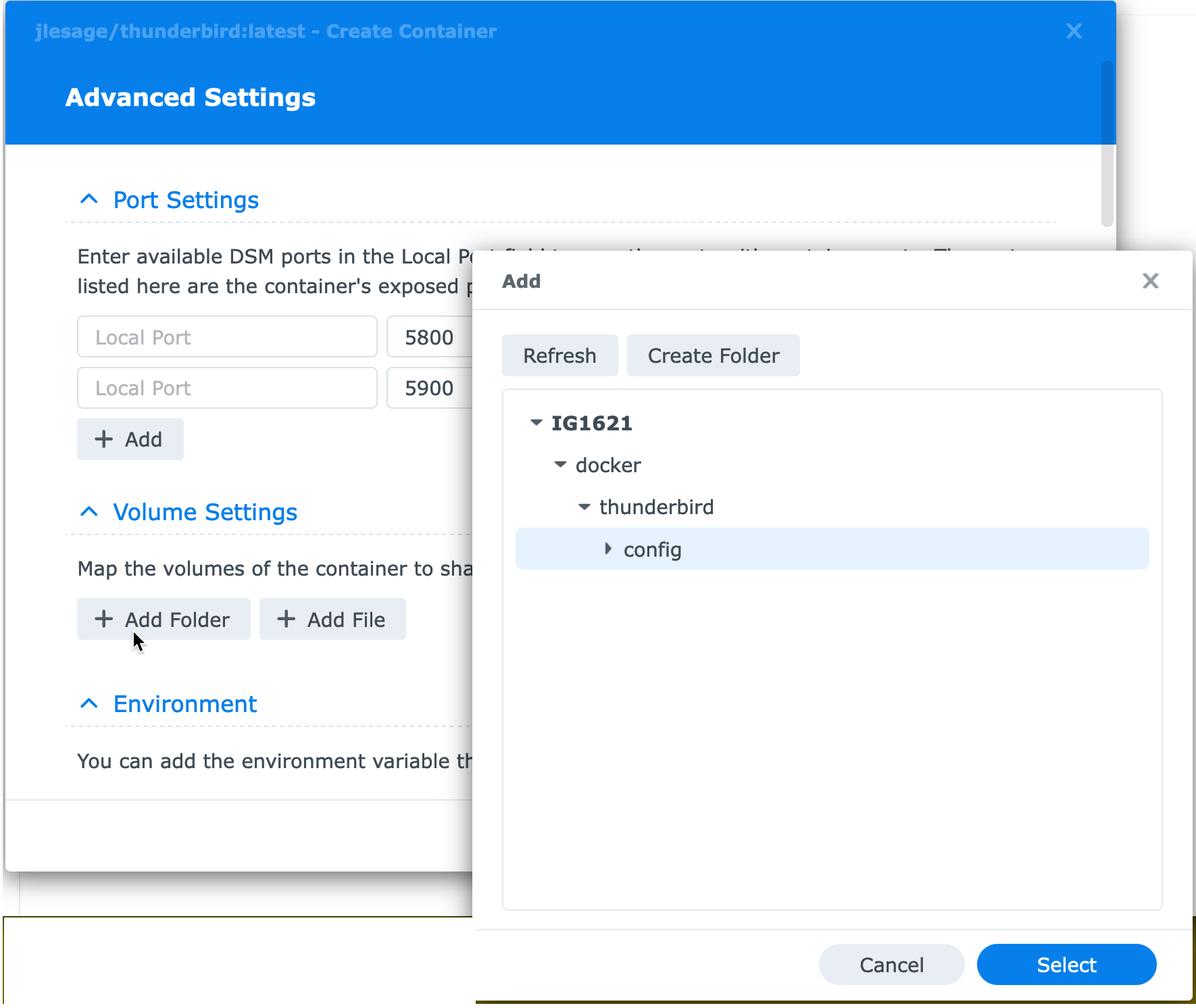
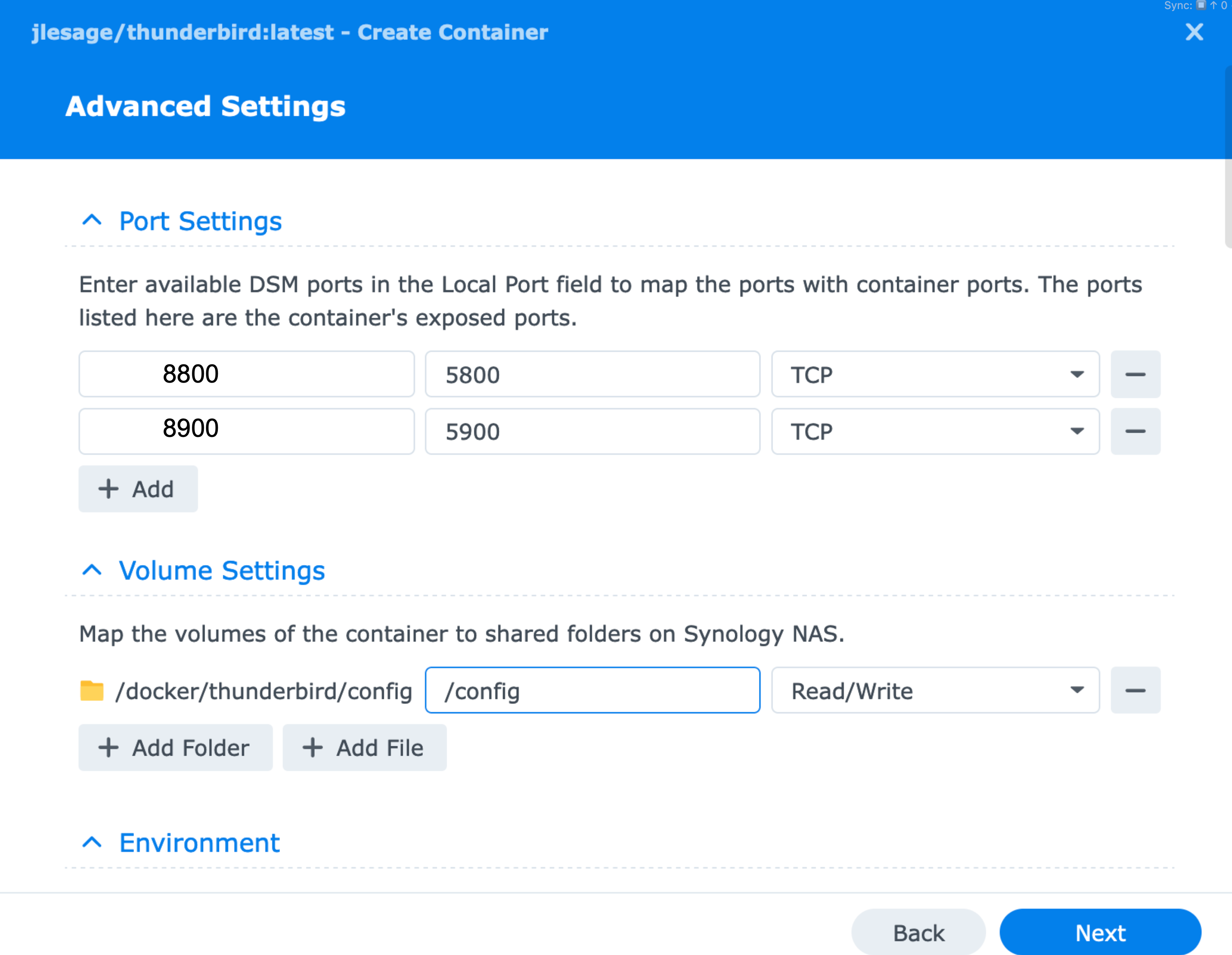
For the next step you will need to know your Group ID and your User ID on the NAS. Use this link to determine this: https://mariushosting.com/synology-find-uid-userid-and-gid-groupid-in-5-seconds/
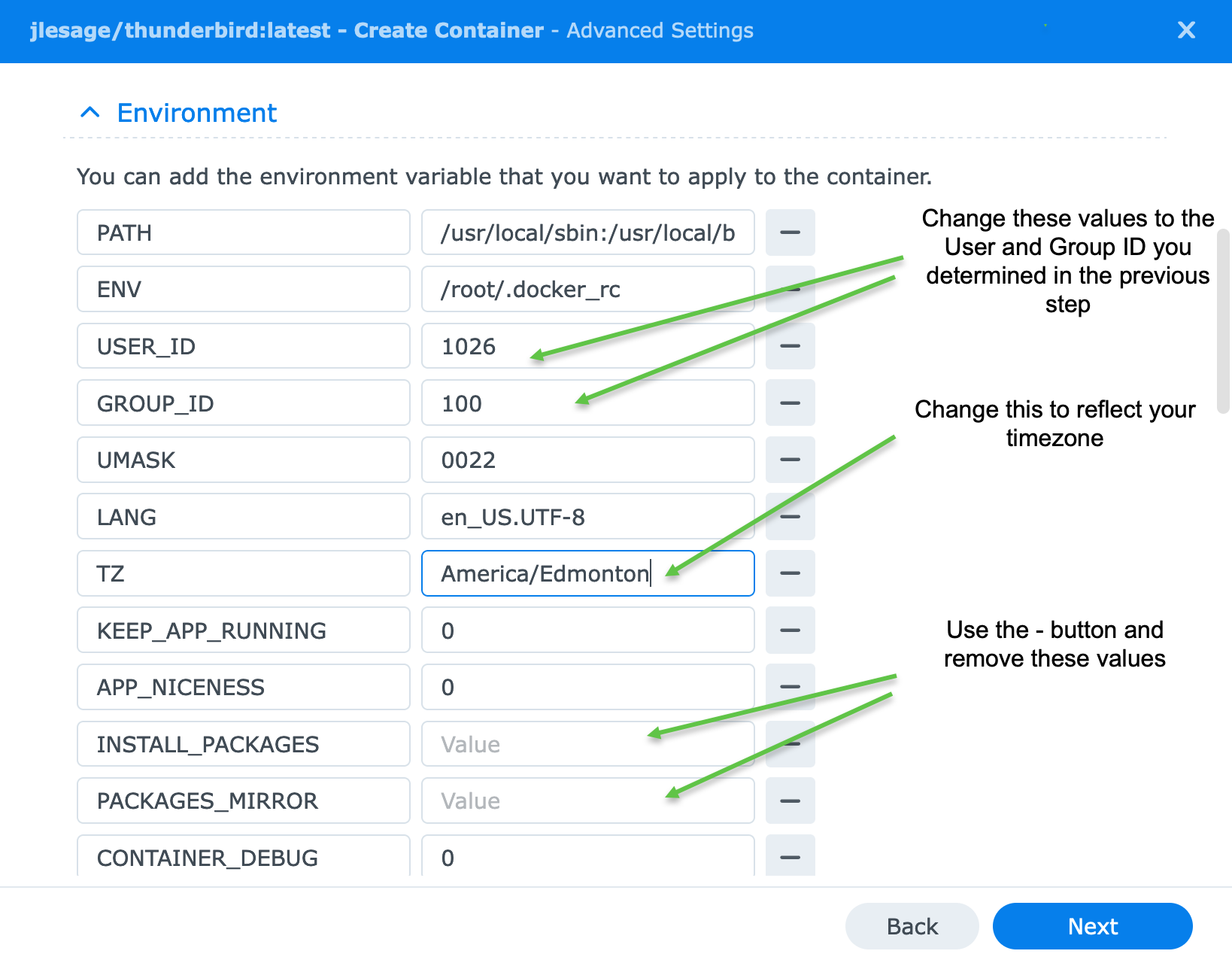
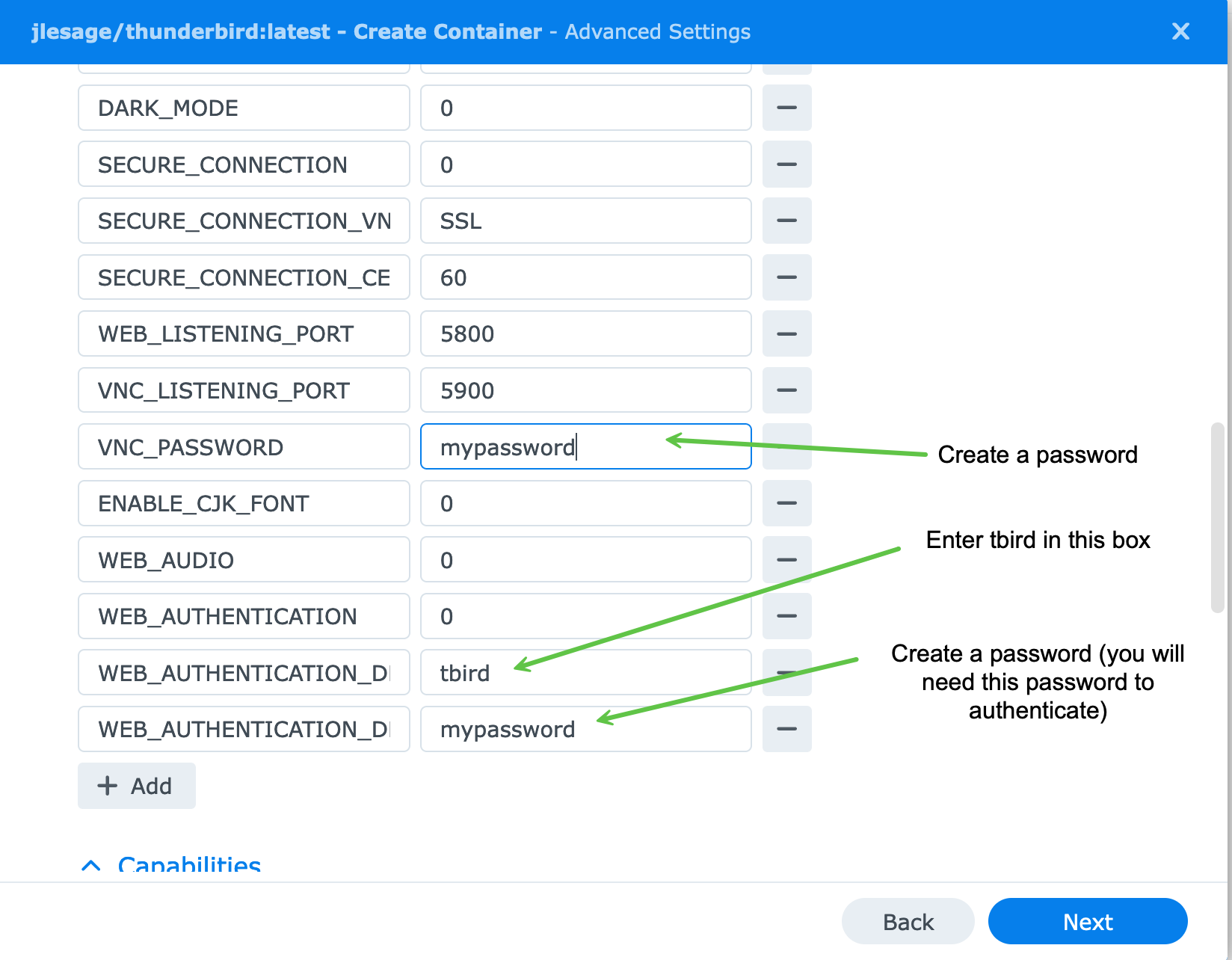
Leave the rest of the settings default
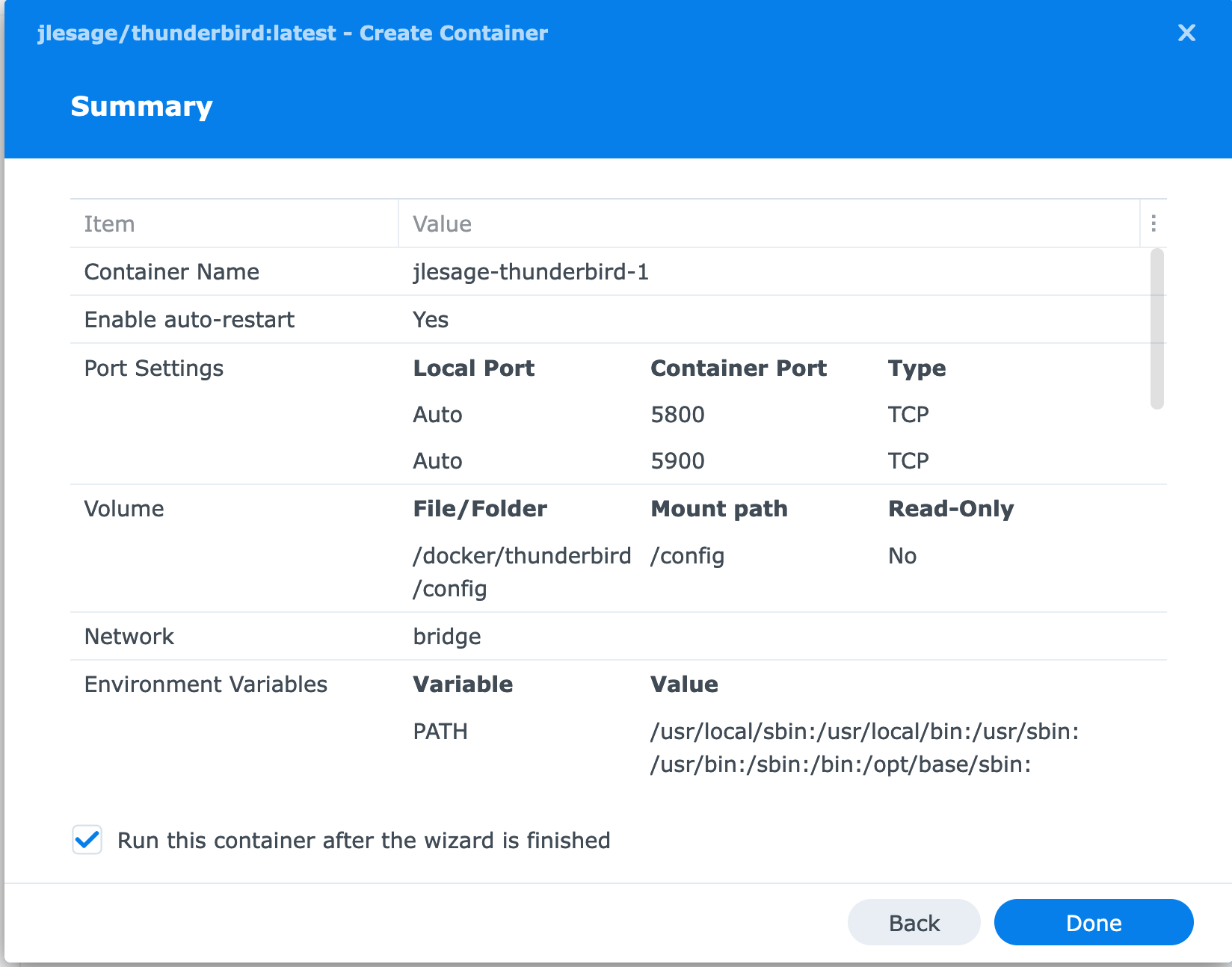
Logging in to Thunderbird
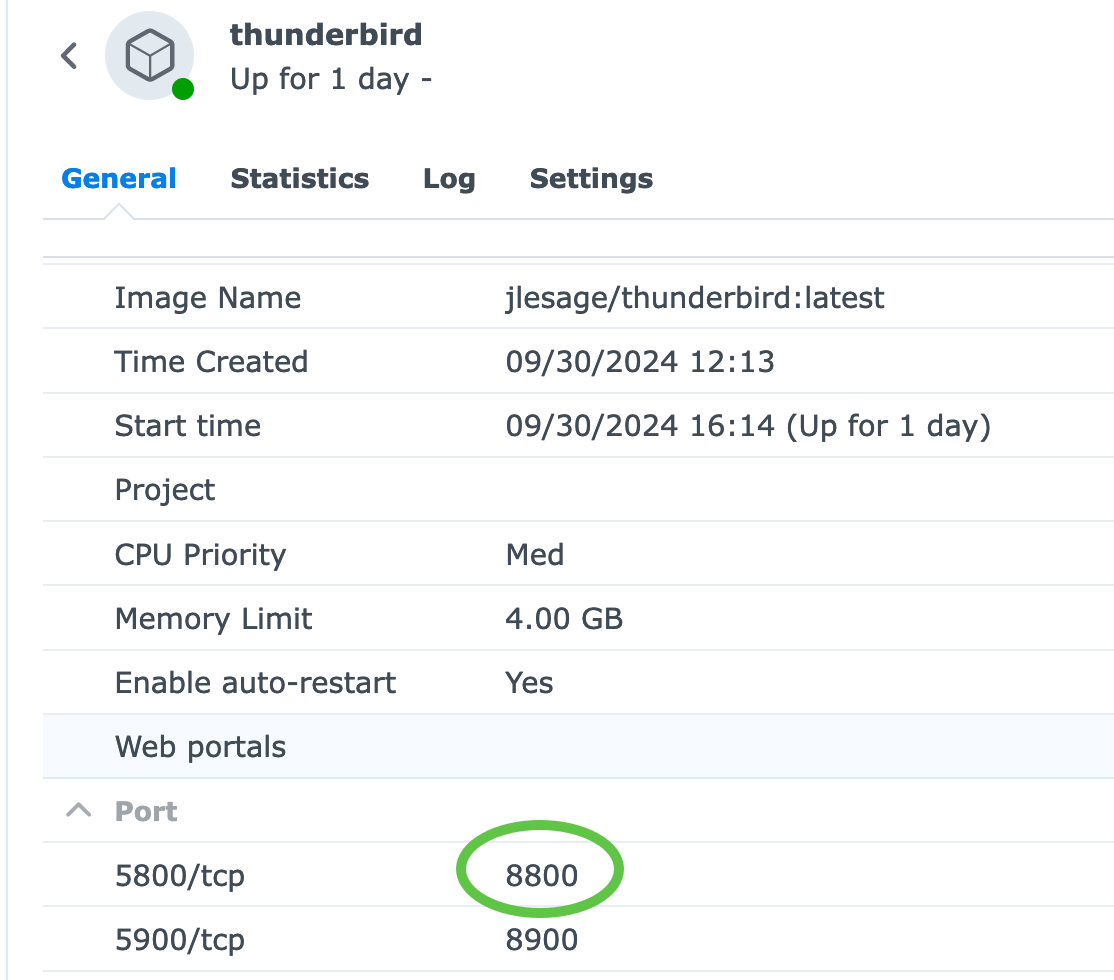
Point your browser to http://192.168.1.88:8800 (obviously use the IP of your own NAS)
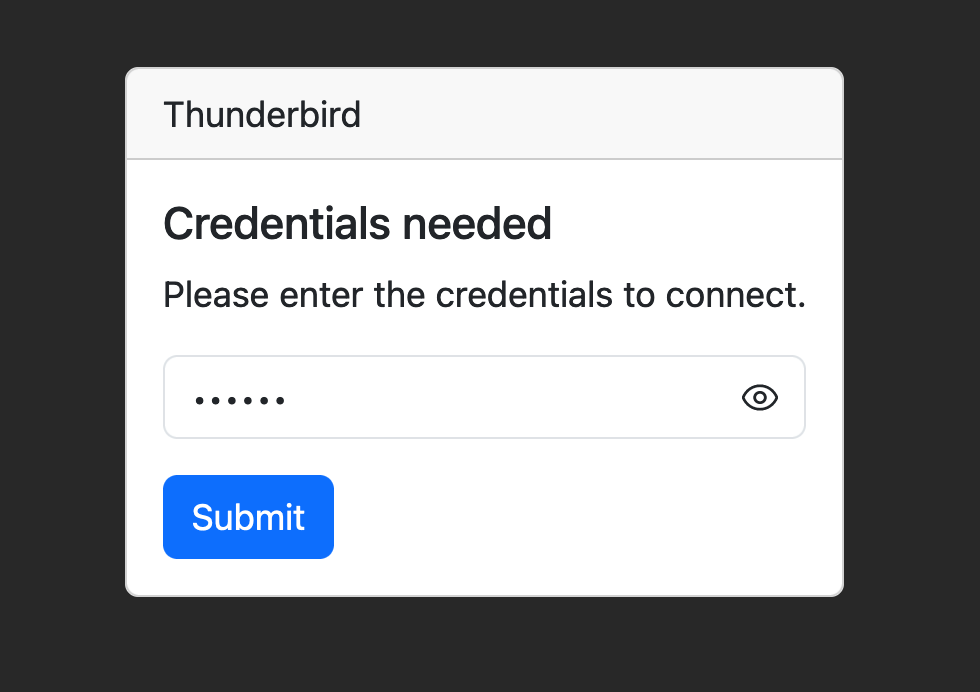
Use the credentials you configured when creating your container.
Configure Thunderbird
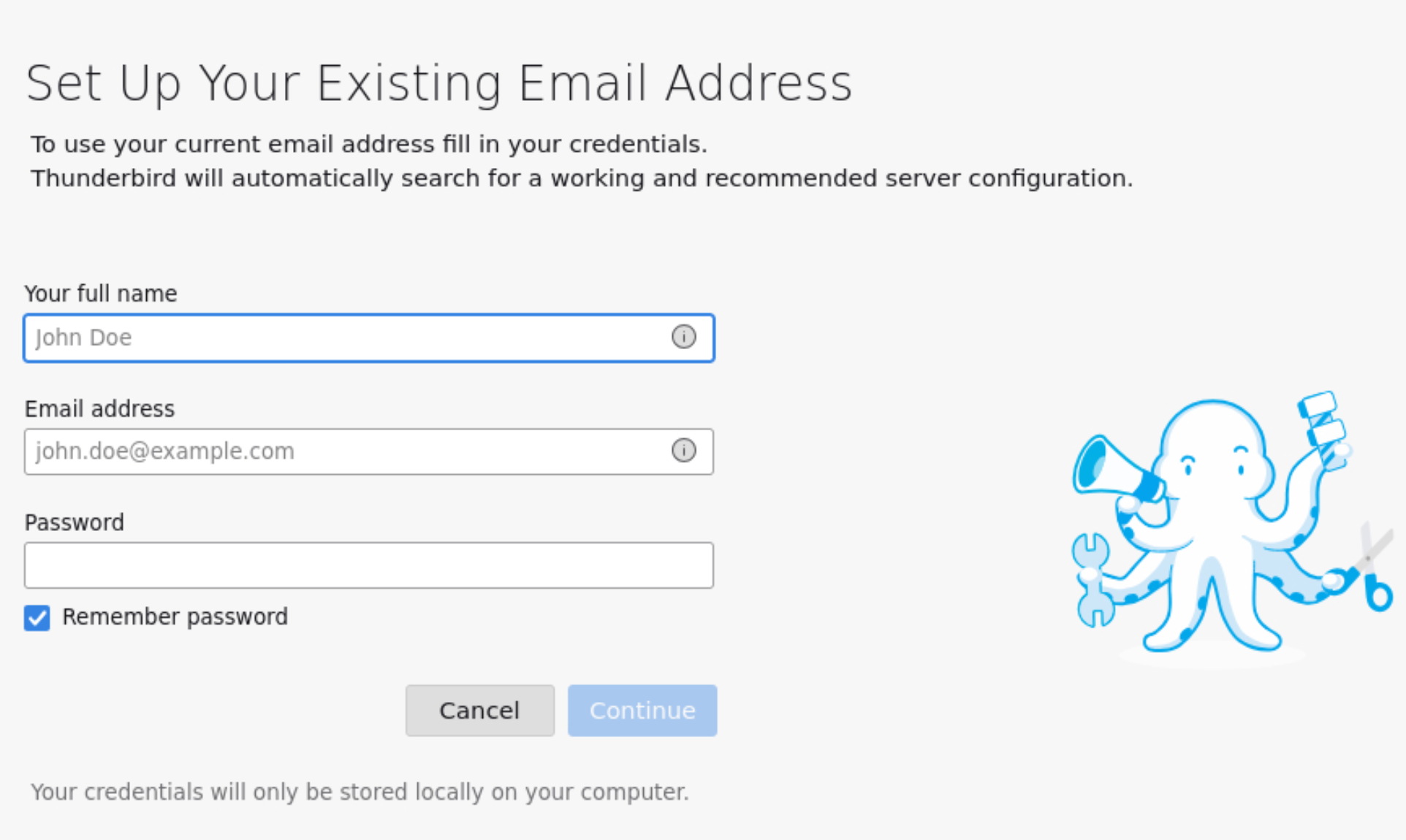
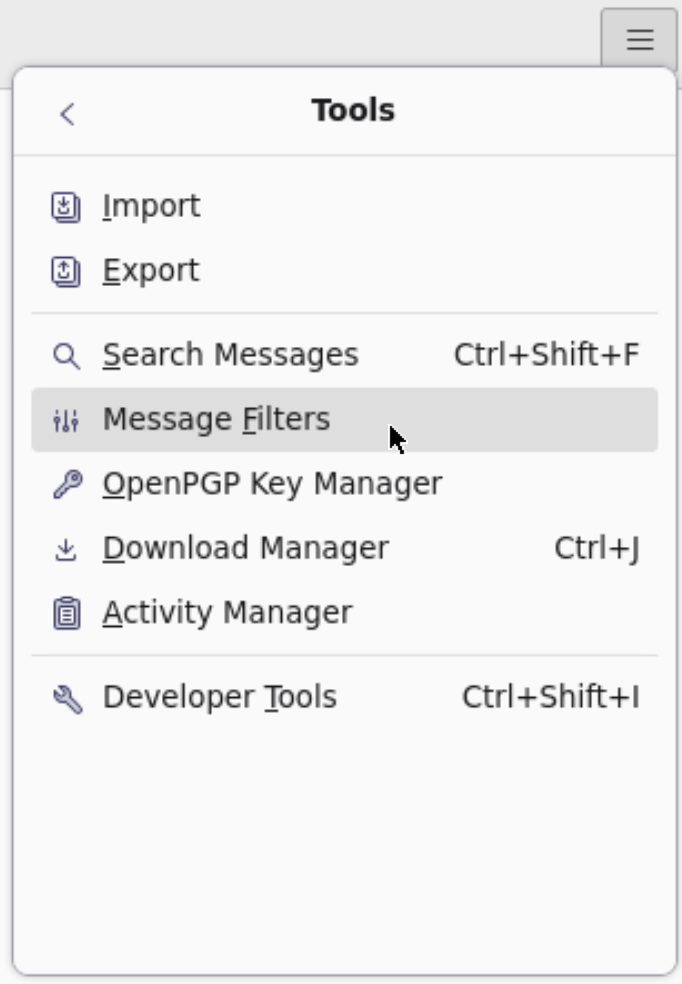
After you have configured your email then configure your SPAM filters
Troubleshooting
Can't connect to your container? Check the following:
- Is your firewall enabled on the Synology? Did you allow the port through?
- Check the container ports that you configured, i.e. http://192.168.1.88:8800 (note it is http NOT https)